When long-running tasks such as machine learning experiments finish, it is very useful to send notifications with the results to Slack. This article explains how to send text messages and images to Slack using Python.
1. Sending Text (Incoming Webhook)
Incoming Webhooks are the simplest way to post messages to Slack from external applications. By sending an HTTP request to a specific URL, you can post messages to a designated channel.
Slack Configuration
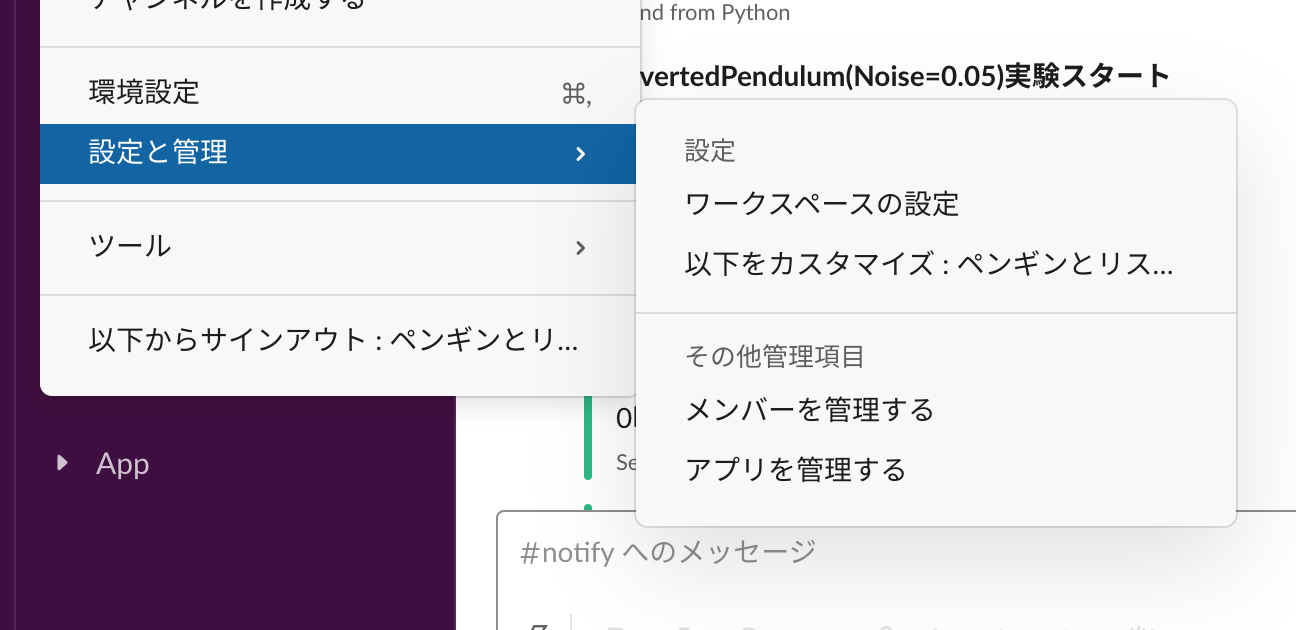
In Slack, go to “Settings & administration” and select “Manage apps.”
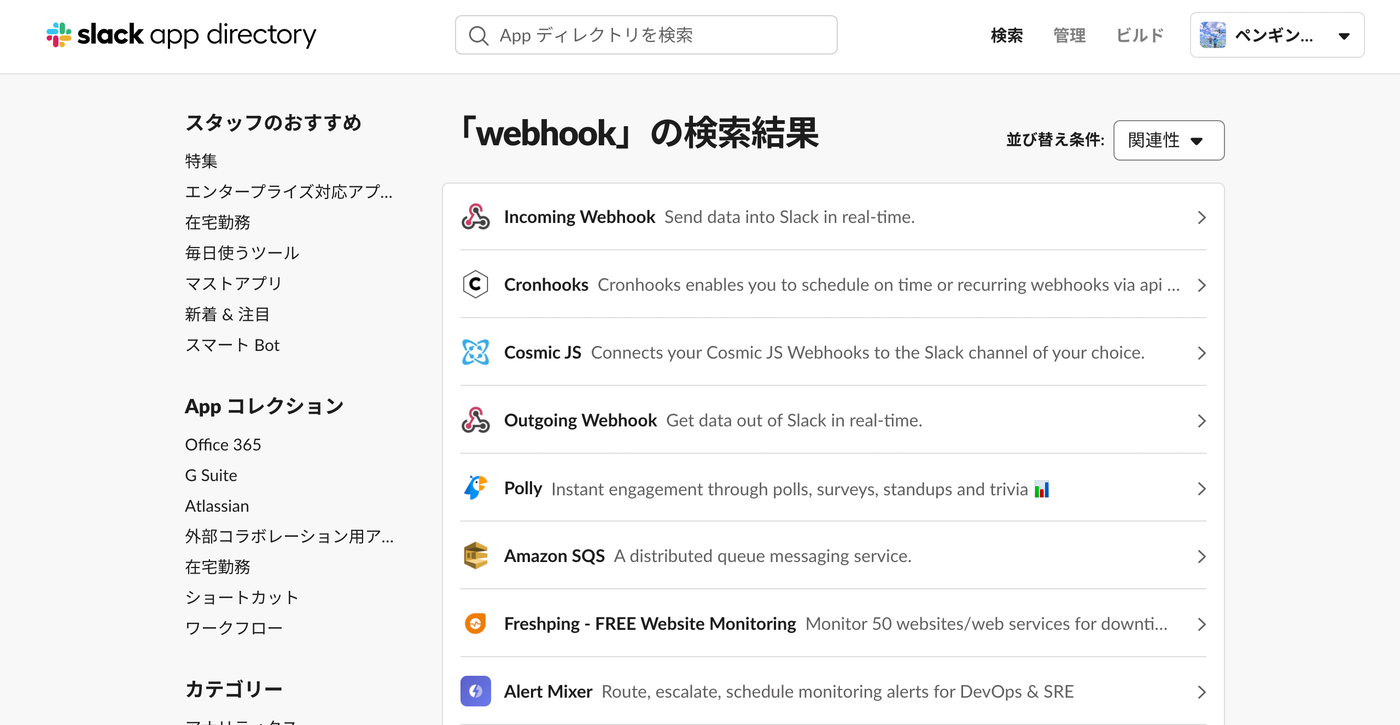
Search for “Incoming Webhooks” in the App Directory and add it to Slack.
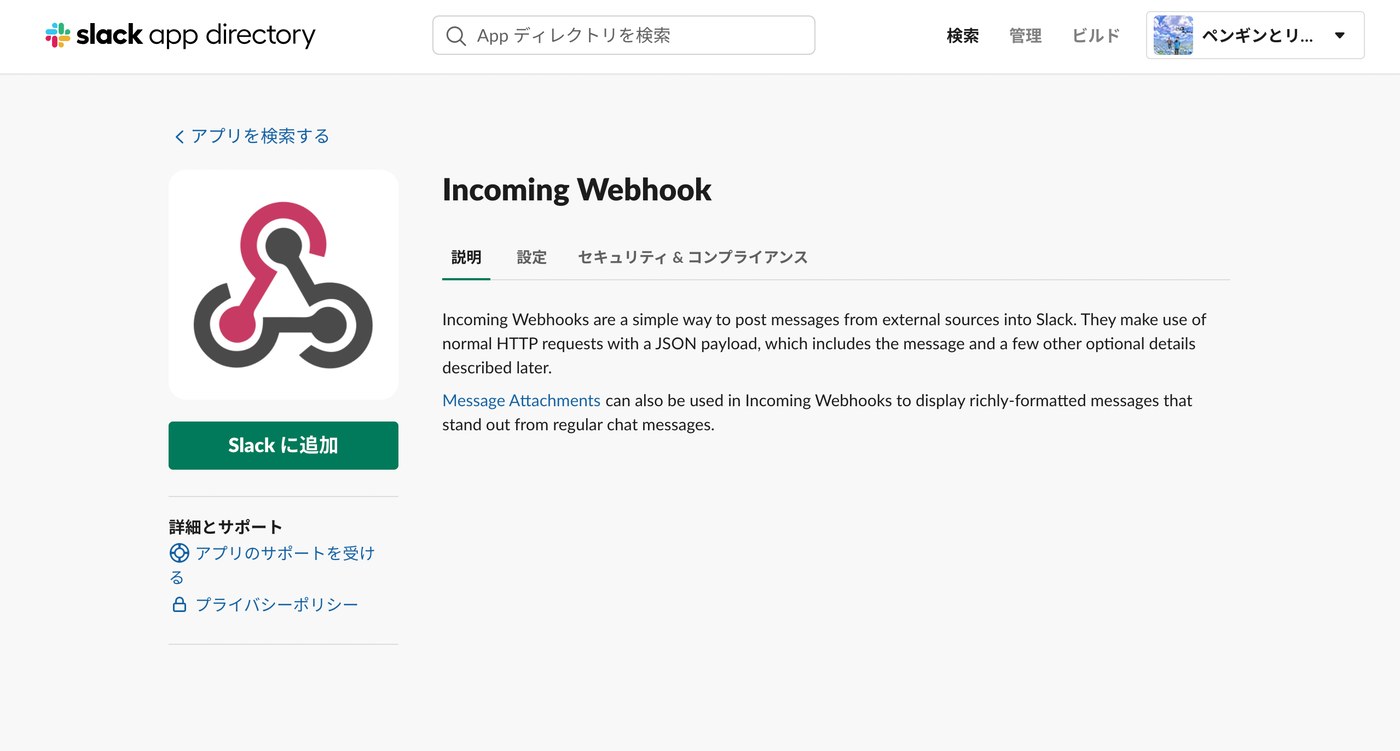
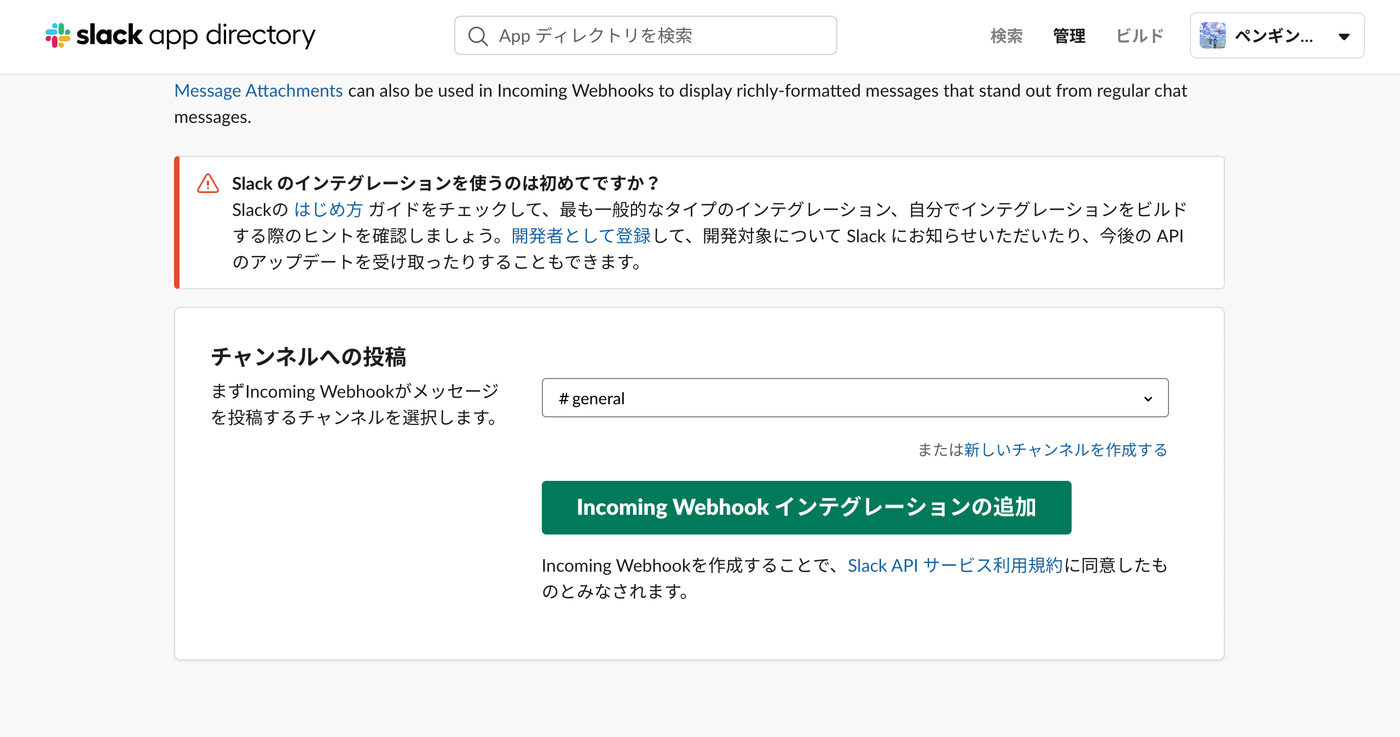
After clicking “Add to Slack,” select the channel where you want to post messages and click “Add Incoming Webhooks integration.”
Copy the generated “Webhook URL.” Be careful not to expose this URL publicly.
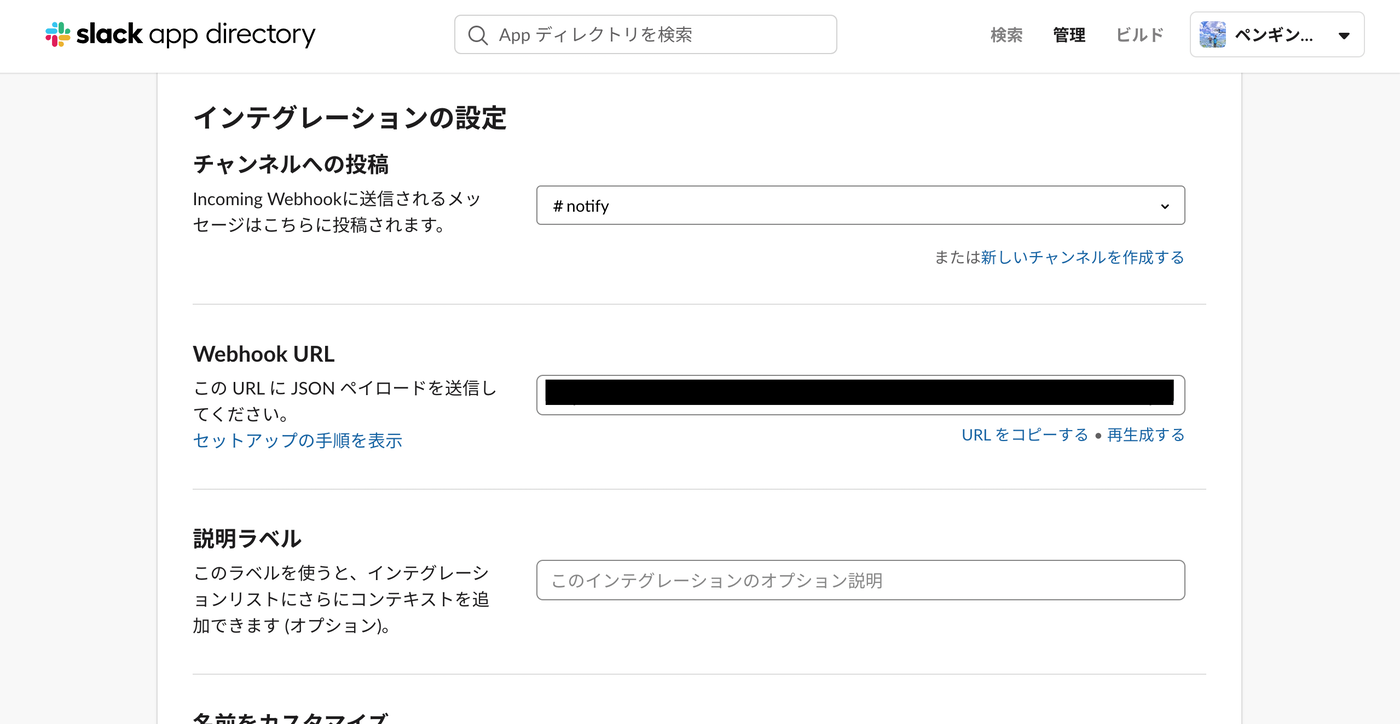
On the configuration page, you can also customize the notification icon and bot name.
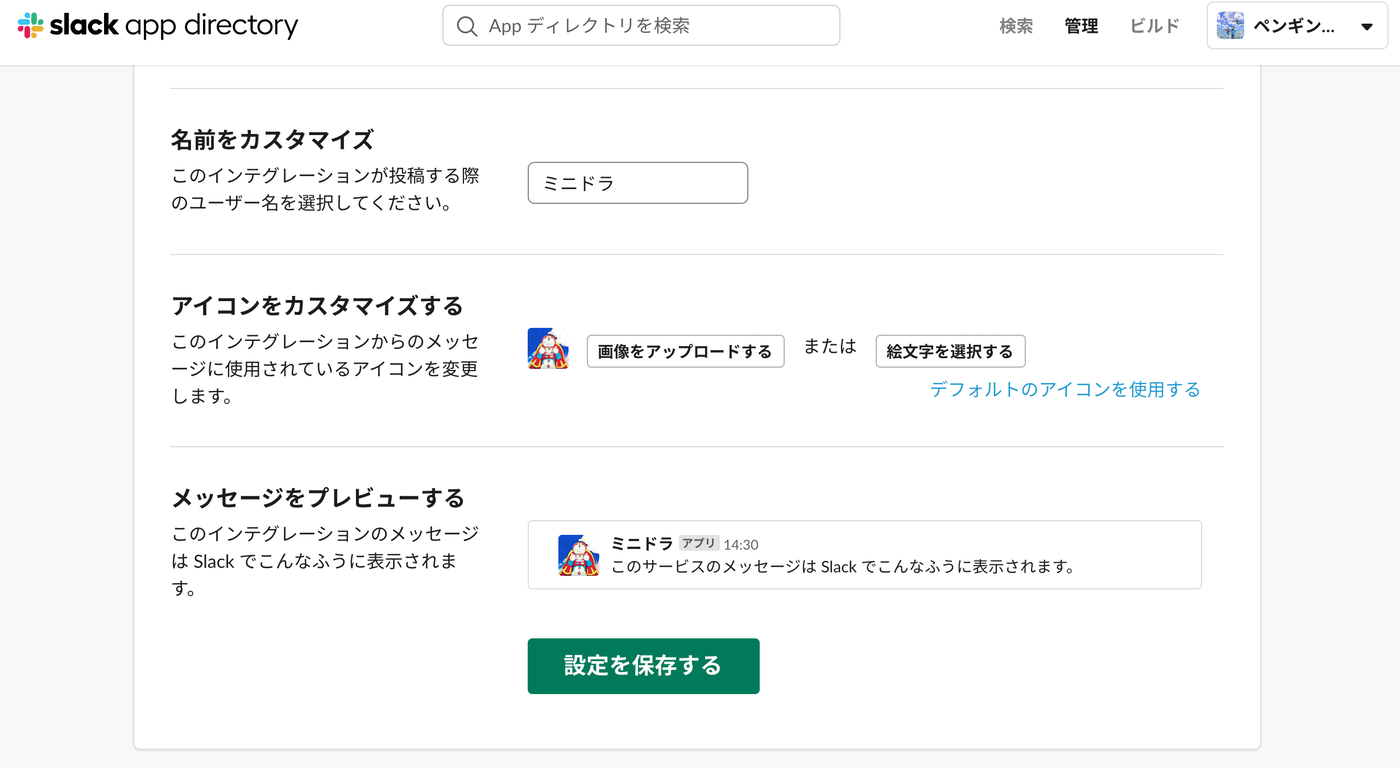
Python Code
The slackweb library makes it easy to implement notifications.
pip install slackweb
import slackweb

# Set the Webhook URL copied from the configuration
slack = slackweb.Slack(url="YOUR_WEBHOOK_URL")

def notify_text(title, text, color):
    """
    Sends a text notification to Slack.

    :param title: Message title
    :param text: Message body
    :param color: Color of the left border ('good', 'warning', 'danger', or hex color code)
    """
    attachments = [{
        "title": title,
        "text": text,
        "color": color,
        "footer": "Sent from Python Script",
    }]
    slack.notify(attachments=attachments)

# --- Examples ---
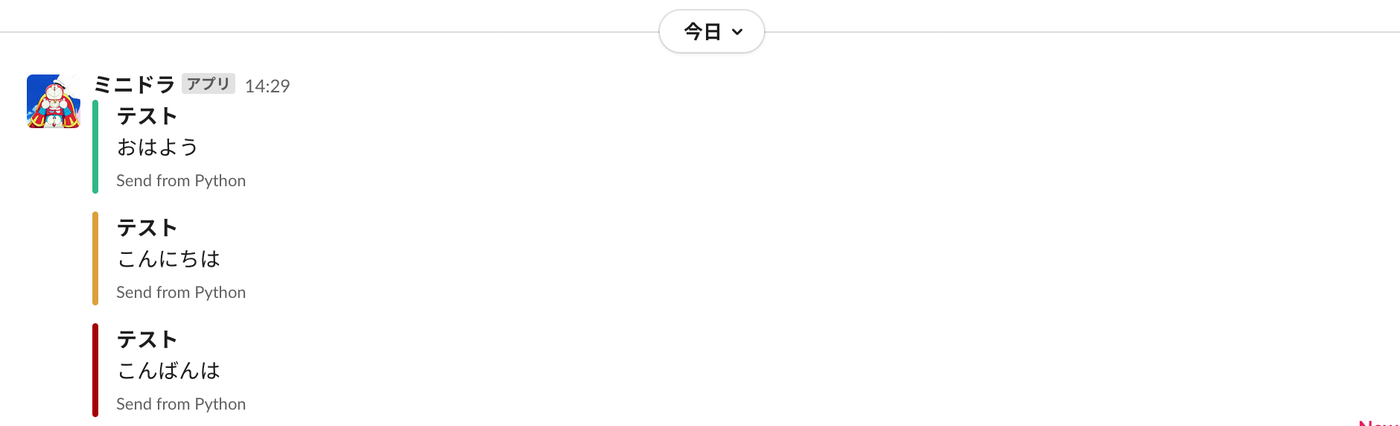
notify_text("Experiment Complete", "Model A training finished.", "good")
notify_text("Warning", "Disk space is running low.", "warning")
notify_text("Error", "An exception occurred during training.", "danger")
- Note: Formatting messages with
attachmentsis now considered a legacy approach. For richer message formatting, Block Kit is recommended.
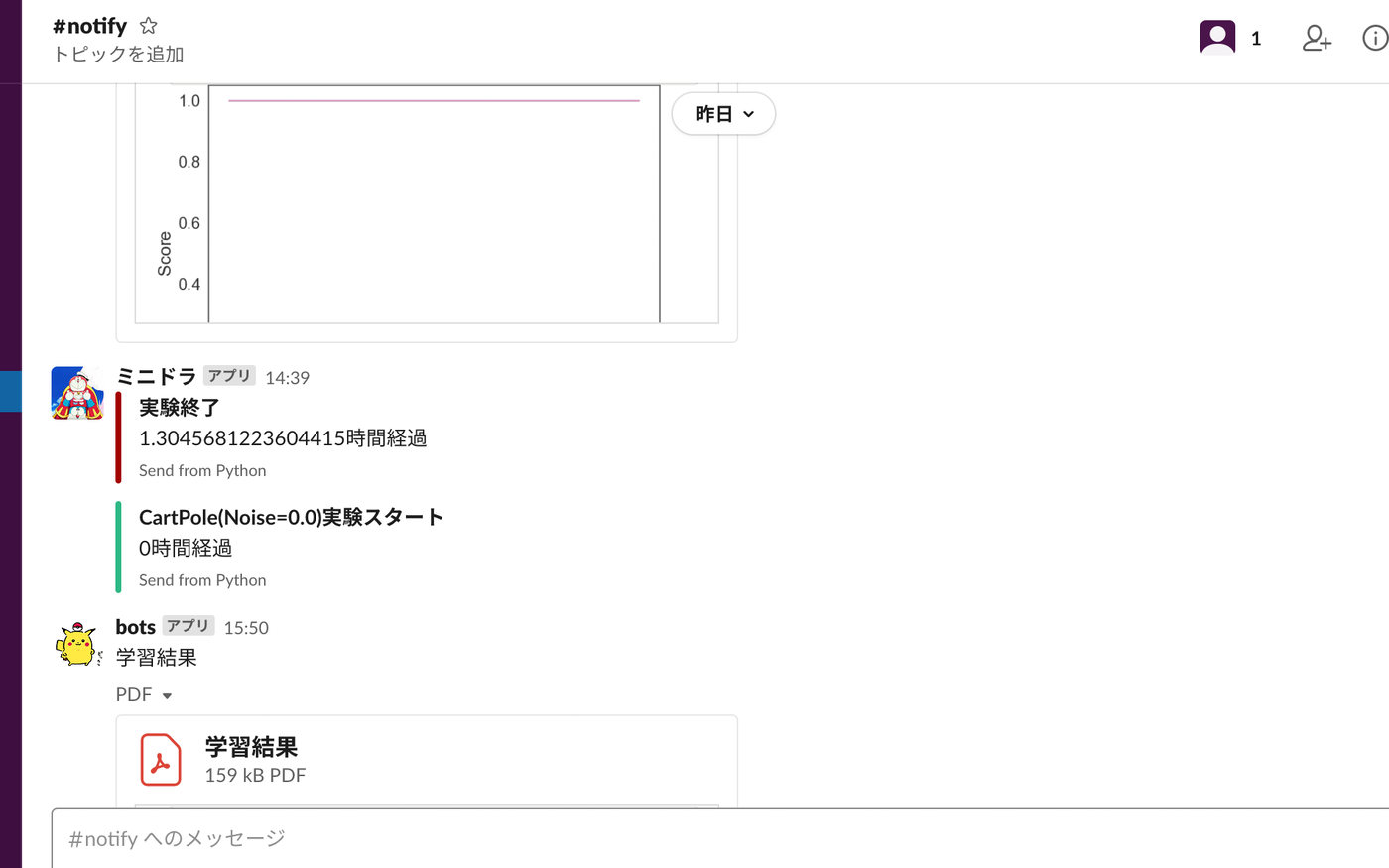
Result
2. Sending Images (files.upload API)
To send image files such as experiment result graphs, use the Slack API’s files.upload method. This requires a different authentication credential (API token) than Incoming Webhooks.
Slack Configuration
- Go to the Slack API site and create a new app under “Create New App.”
- Navigate to “OAuth & Permissions” in the app management page.
- In the “Scopes” section under “Bot Token Scopes,” add the “
files:write” scope. This grants the app permission to upload files. - Click “Install to Workspace” at the top of the page to install the app and authorize it.
- After installation, the “Bot User OAuth Token” will be displayed. Copy this token (it usually starts with
xoxb-). Keep this token secure and do not expose it publicly.
Python Code
Use the requests library to send API requests.
import requests

def notify_image(channel, title, image_path, token):
    """
    Uploads an image to Slack.

    :param channel: Target channel name (e.g., '#general')
    :param title: Image title
    :param image_path: File path of the image to upload
    :param token: Slack app's Bot User OAuth Token
    """
    files = {'file': open(image_path, 'rb')}
    params = {
        'token': token,
        'channels': channel,
        'title': title,
    }
    requests.post(url="https://slack.com/api/files.upload", params=params, files=files)

# --- Example ---
SLACK_API_TOKEN = "YOUR_BOT_USER_OAUTH_TOKEN"
CHANNEL_NAME = "#random" # Target channel
IMAGE_FILE_PATH = "test.png" # Image to send

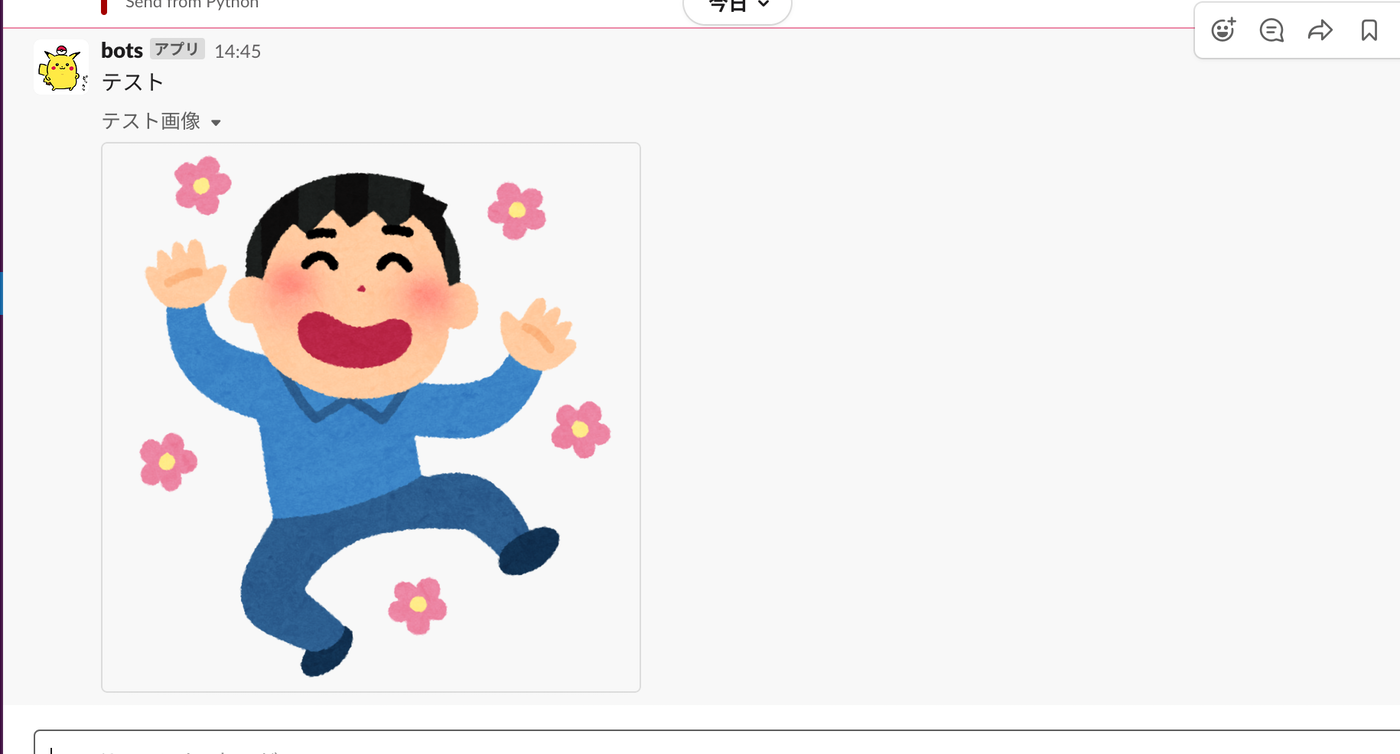
notify_image(CHANNEL_NAME, "Training Results Graph", IMAGE_FILE_PATH, SLACK_API_TOKEN)
Result
Related Articles
- Creating 3D Animations (GIFs) with Python Matplotlib - Learn how to create graphs with Matplotlib that you can send to Slack as experiment results.
- Matplotlib Practical Tips: Creating Publication-Quality Figures - Improve the quality of experiment result graphs sent to Slack.
- GitHub Actions Basics - Useful reference for sending Slack notifications from CI/CD pipelines.
- Introduction to Python Async: asyncio Basics and Practice - Async processing fundamentals for efficiently sending bulk notifications.