Introduction
With GitHub Pages, you can publish websites for free. I learned that combining it with a static site generator (Hugo in this case) makes it easy to create a blog, so I decided to try it. This is a summary of that process.
What is Hugo?
When building a blog, Content Management Systems (CMS) like WordPress are commonly used for their ease of content creation and editing. However, using a CMS requires installing and configuring the CMS itself and setting up a database, which can be complex. For small blogs, creating a static site with HTML files can be more cost-effective. That said, manually creating HTML files is tedious. This is where static site generators come in, and Hugo is one of them.
Hugo is a static site generator built with Go. With Hugo, you can create a blog consisting of static HTML and CSS files without needing a database. Content is written in Markdown format, and building generates static HTML files.

Advantages of Hugo:
- Fast build and rendering
- No database required, making management simple
Creating a Site with Hugo
Installing Hugo
# With Homebrew (macOS)
brew install hugo
For other installation methods, see Install Hugo.
Creating a Site
hugo new site test # 'test' can be any name
cd test
hugo # This command generates the site
Previewing on Local Server
hugo server
Preview at http://localhost:1313.
Directory Structure
.
├── archetypes # Files processed by Hugo Pipes
├── config.toml # Hugo configuration file
├── content # Article files go here
├── data # Data files referenced across all pages
├── layouts # For customizing theme files or adding layout partials
├── public # Generated HTML code (this gets published)
├── static # Static files for the site
└── themes # Theme files
Using a Theme
Choose a theme from Hugo Themes and clone it into the themes folder.
cd themes
git clone <theme-repo-url>
Add the following line to config.toml:
theme = "chosen-theme-name"

Creating Blog Posts
cd test
hugo new post/new-post.md
Contents of new-post.md:
---
title: "Title"
date: 2020-08-16T15:17:23+09:00
draft: false # Set to true to hide the post
tags: ["python", "ros"]
---
Write your article in Markdown here
- Run the
hugocommand to generate static files under thepublicdirectory:
cd test
hugo
GitHub Pages
Creating a GitHub Repository
Click the “+” icon in the top right of GitHub and select “New repository.” Name the repository “username.github.io.” The published URL will be https://username.github.io.
Upload the public Folder
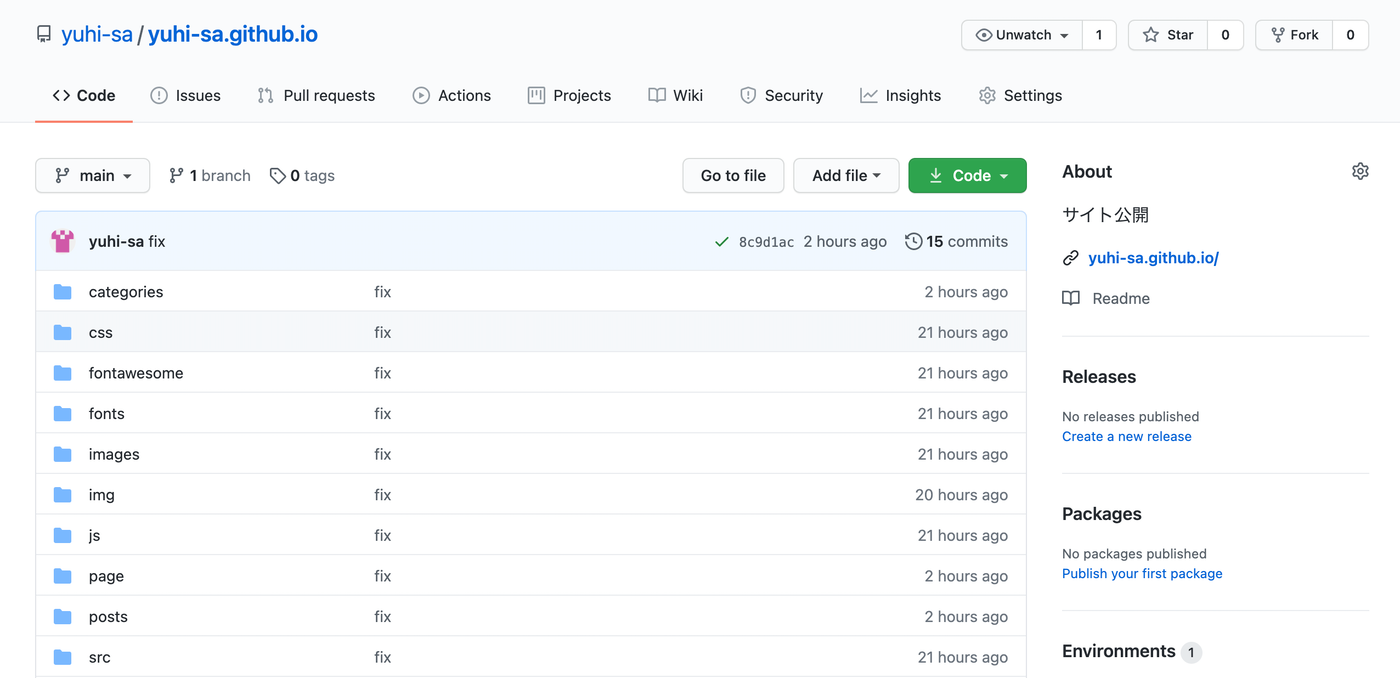
Since GitHub Pages only serves HTML files from the repository root, upload the public folder from your Hugo project to the “username.github.io” repository. Manage the Hugo project (test folder) itself in a separate repository or branch.
Additional Tips
Running Hugo
Preview locally:
hugo server
Preview including drafts:
hugo server -D
Enabling LaTeX Math Formulas
Create /layouts/partials/add_mathjax.html:
<script>
    MathJax = {
        tex: {
        inlineMath: [['$', '$'], ['\\(', '\\)']]
        }
    };
</script>

<script id="MathJax-script" async src="https://cdn.jsdelivr.net/npm/mathjax@3/es5/tex-chtml.js"></script>
Add to /layouts/partials/site-header.html:
{{ partial "add_mathjax.html" . }}
Google Analytics
Add the following to config.toml:
googleAnalytics = "Measurement-ID"
Since the built-in template for Google Analytics integration is outdated, edit layouts/partials/head.html:
- {{ template "_internal/google_analytics_async.html" . }}
+ {{- partial "analytics" . -}}
Create layouts/partials/analytics.html:
{{ if not .Site.IsServer }}
{{ with .Site.GoogleAnalytics }}
<!-- Global site tag (gtag.js) - Google Analytics -->
<script async src="https://www.googletagmanager.com/gtag/js?id={{ . }}"></script>
<script>
   window.dataLayer = window.dataLayer || [];
   function gtag(){dataLayer.push(arguments);}
   gtag('js', new Date());
   gtag('config', '{{ . }}');
</script>
{{ end }}
{{ end }}
Creating a Sitemap
Create layouts/sitemap.xml:
<urlset xmlns="http://www.sitemaps.org/schemas/sitemap/0.9">
{{ range .Data.Pages }}{{ if .IsPage }}
<url>
  <loc>{{ .Permalink }}</loc>
  {{ if not .Lastmod.IsZero }}
  <lastmod>{{ safeHTML ( .Lastmod.Format "2006-01-02T15:04:05-07:00" ) }}</lastmod>
  <changefreq>weekly</changefreq>
  {{ end }}
</url>
{{ end }}{{ end }}
</urlset>
Create layouts/robots.txt:
Sitemap : {{ $.Site.BaseURL }}sitemap.xml
Edit config.toml:
enableRobotsTXT = true
The sitemap is available at /sitemap.xml.