Overwriting a Single Line
To overwrite a single line, use \r (carriage return). This control character moves the cursor to the beginning of the current line.
print("\r" + "Overwriting a single line!", end="")
Use end="" to prevent a newline character from being printed, keeping the cursor on the same line.
Countdown Timer Example
Here is a practical use of \r to implement a countdown timer.
import time
import sys

def countdown(seconds):
    for i in range(seconds, 0, -1):
        # \r returns to the start of the line, overwriting previous output
        sys.stdout.write(f"\rTime remaining: {i:3d} seconds")
        sys.stdout.flush()
        time.sleep(1)
    sys.stdout.write("\rDone!                      \n")

countdown(10)
Here we use sys.stdout.write and sys.stdout.flush(). While print internally calls sys.stdout.write, using sys.stdout directly gives more explicit control over buffering. Calling flush() ensures that output is immediately displayed on screen.
Note: If the new string is shorter than the previous one, leftover characters from the previous output will remain visible. In the example above, spaces are added after "Done!" to ensure the previous text is fully cleared.
Spinning Cursor Implementation
A spinning cursor (loading animation) that visually indicates ongoing processing can also be implemented with \r.
import sys
import time
import itertools

def spinning_cursor(duration=5):
    spinner = itertools.cycle(['|', '/', '-', '\\'])
    end_time = time.time() + duration
    while time.time() < end_time:
        sys.stdout.write(f"\rProcessing... {next(spinner)}")
        sys.stdout.flush()
        time.sleep(0.1)
    sys.stdout.write("\rComplete!          \n")

spinning_cursor(3)
Using itertools.cycle allows the spinner characters to repeat indefinitely.
What print() Actually Does, and Buffering
print() is a convenient high-level function, but underneath it is a thin wrapper. Conceptually, CPython’s real behavior can be reproduced like this (this is illustrative pseudo-code, not the actual C implementation):
import sys

def my_print(*objects, sep=" ", end="\n", file=None, flush=False):
    if file is None:
        file = sys.stdout
    file.write(sep.join(str(obj) for obj in objects) + end)
    if flush:
        file.flush()
sep: the string inserted between multiple arguments (default: a single space)end: the string appended after everything else (default: a newline). This article passesend=""precisely to suppress that newline so the\rcursor movement has an effectfile: the stream to write to. Defaults tosys.stdout, but you can passsys.stderror any writableioobjectflush: ifTrue, forces the stream’s buffer to be flushed immediately after this call
The key point is that print() ultimately just calls file.write() — whether that data actually reaches the screen (or file) right away is governed by a separate “buffering mode,” independent of the write call itself.
Three Buffering Modes
CPython’s io module automatically picks a buffering strategy based on what the stream is connected to.
| Mode | Behavior | When it applies |
|---|---|---|
| Line buffering | Automatically flushed every time a newline \n is written | Default for sys.stdout when connected to an interactive terminal (isatty() is True) |
| Full / block buffering | Writes are held in an internal buffer (default size io.DEFAULT_BUFFER_SIZE bytes) until it fills up, the program exits, or flush()/close() is called explicitly | Default for sys.stdout when connected to a file or pipe (a non-interactive destination) |
| Unbuffered | Writes are reflected immediately | sys.stderr behaves close to this at all times. To force sys.stdout into this mode, use python -u or the PYTHONUNBUFFERED=1 environment variable |
On the Python 3.14.6 install used to verify this article, the default buffer size for full buffering was:
>>> import io
>>> io.DEFAULT_BUFFER_SIZE
131072
That’s 128 KiB — considerably larger than the 8 KiB default that had been in use since the Python 2 era. The increase was tracked and implemented in CPython issue #117151 as a bulk-I/O performance improvement. The larger the buffer, the longer the potential delay before a “burst” of buffered output appears under full buffering.
sys.stderr is designed to never buffer output, so that error messages are never delayed or lost. This is exactly why this article’s countdown timer and spinner examples call sys.stdout.flush() right after every sys.stdout.write() — if sys.stdout is connected to a non-interactive destination (a file redirect, a CI runner, etc.) and flush() is never called, the “overwrite” effect built with \r won’t reach the screen at all; it will all be dumped at once when the process exits.
Experiment: Output Order Differs Between a Terminal and a Redirect
Let’s verify this concretely. The following script alternates between print() (via sys.stdout) and sys.stderr.write().
import sys
import time

for i in range(5):
    print(f"stdout {i}")               # via sys.stdout (buffering mode depends on the destination)
    sys.stderr.write(f"stderr {i}\n")  # sys.stderr is never buffered
    time.sleep(0.15)
Running this script with stdout connected to a pseudo-terminal (pty) versus a plain pipe (the same buffering behavior as a file redirect), and recording arrival timestamps for each line (using the pty module to create a pseudo-terminal and select to time event arrival), gives the following.
Case A: stdout connected to an interactive terminal (pty)
t=0.018s [STDOUT] stdout 0
t=0.018s [STDERR] stderr 0
t=0.169s [STDOUT] stdout 1
t=0.169s [STDERR] stderr 1
t=0.321s [STDOUT] stdout 2
t=0.321s [STDERR] stderr 2
t=0.476s [STDOUT] stdout 3
t=0.476s [STDERR] stderr 3
t=0.631s [STDOUT] stdout 4
t=0.631s [STDERR] stderr 4
stdout and stderr appear at nearly the same time, interleaved as expected in real time (line buffering).
Case B: stdout redirected to a plain pipe/file
t=0.020s [STDERR] stderr 0
t=0.172s [STDERR] stderr 1
t=0.327s [STDERR] stderr 2
t=0.481s [STDERR] stderr 3
t=0.632s [STDERR] stderr 4
t=0.787s [STDOUT] stdout 0
t=0.787s [STDOUT] stdout 1
t=0.787s [STDOUT] stdout 2
t=0.787s [STDOUT] stdout 3
t=0.787s [STDOUT] stdout 4
stderr appears immediately each time, but all five stdout lines arrive only when the process exits. That’s full buffering in action. You can verify this yourself by running python3 script.py > out.txt: stderr streams to the terminal in real time, while out.txt only fills in once the program finishes.
The fix: either of these restores real-time behavior even when stdout is redirected.
# Option 1: pass flush=True to each print() call
print(f"stdout {i}", flush=True)

# Option 2: launch the interpreter with -u (unbuffered)
# $ python3 -u script.py > out.txt
Verifying both in practice confirmed that stdout and stderr interleave again with the same timing pattern as Case A. This flush() mechanism (or its equivalent) is exactly what makes the \r-based real-time overwrite technique in this article work at all.
Overwriting Multiple Lines
To overwrite multiple lines, you can use special ANSI escape codes. The sequence \033[nA moves the cursor up n lines.
import time

print("First line")
print("Second line")
print("Third line")

time.sleep(1) # Wait for a second to see the initial output

# Move cursor up 2 lines (from the current position, which is after "Third line")
# and then overwrite the second and third lines.
print("\033[2A" + "New Second line\n" + "New Third line")
ANSI Escape Sequence Reference
Here is a summary of the main ANSI escape sequences for cursor control and text decoration in the terminal.
Cursor Control
| Sequence | Description | Example |
|---|---|---|
\033[nA | Move cursor up n lines | print("\033[2A") |
\033[nB | Move cursor down n lines | print("\033[1B") |
\033[nC | Move cursor right n columns | print("\033[5C") |
\033[nD | Move cursor left n columns | print("\033[3D") |
\033[2K | Clear current line | print("\033[2K", end="") |
\033[J | Clear from cursor to end | print("\033[J", end="") |
\033[H | Move cursor to top-left | print("\033[H") |
\033[{r};{c}H | Move cursor to row r, column c | print("\033[5;10H") |
Text Decoration (Colors & Styles)
| Sequence | Description |
|---|---|
\033[0m | Reset (clear all) |
\033[1m | Bold |
\033[4m | Underline |
\033[31m | Red text |
\033[32m | Green text |
\033[33m | Yellow text |
\033[34m | Blue text |
\033[41m | Red background |
\033[42m | Green background |
For example, colored status messages can be written as follows.
# Display in green for success, red for failure
def print_status(message, success=True):
    color = "\033[32m" if success else "\033[31m"
    reset = "\033[0m"
    print(f"{color}{message}{reset}")

print_status("Test passed", success=True)
print_status("Test failed", success=False)
Download Progress Bar Example
By combining \r and ANSI escape sequences, you can build a practical download progress display.
import sys
import time

def download_progress(total_size, chunk_size=1024):
    """Display download progress with a progress bar"""
    downloaded = 0
    bar_length = 40

    while downloaded < total_size:
        downloaded += chunk_size
        if downloaded > total_size:
            downloaded = total_size

        # Calculate progress
        progress = downloaded / total_size
        filled = int(bar_length * progress)
        bar = "█" * filled + "░" * (bar_length - filled)

        # Display in MB
        dl_mb = downloaded / (1024 * 1024)
        total_mb = total_size / (1024 * 1024)

        # Color-coded progress
        if progress < 0.5:
            color = "\033[33m"  # Yellow
        else:
            color = "\033[32m"  # Green
        reset = "\033[0m"

        sys.stdout.write(
            f"\r{color}[{bar}]{reset} "
            f"{progress:6.1%} "
            f"({dl_mb:.1f}/{total_mb:.1f} MB)"
        )
        sys.stdout.flush()
        time.sleep(0.01)  # Simulate download

    sys.stdout.write("\n")
    print("Download complete!")

# Simulate a 10MB file download
download_progress(10 * 1024 * 1024, chunk_size=100 * 1024)
Multi-Line Real-Time Update Example
By combining ANSI escape sequences, you can update the progress of multiple tasks simultaneously in real time.
import sys
import time
import random

def multi_task_progress():
    """Update progress for multiple tasks simultaneously"""
    tasks = ["Fetching ", "Preprocess", "Training  ", "Evaluation"]
    progress = [0] * len(tasks)

    # Initial display
    for task in tasks:
        print(f"  {task}: [{'░' * 30}]   0%")

    while not all(p >= 100 for p in progress):
        # Randomly advance progress
        for i in range(len(tasks)):
            if progress[i] < 100:
                progress[i] = min(100, progress[i] + random.randint(0, 5))

        # Move cursor up by the number of tasks
        sys.stdout.write(f"\033[{len(tasks)}A")

        for i, task in enumerate(tasks):
            filled = int(30 * progress[i] / 100)
            bar = "█" * filled + "░" * (30 - filled)
            if progress[i] >= 100:
                color = "\033[32m"  # Complete: green
            else:
                color = "\033[33m"  # In progress: yellow
            reset = "\033[0m"
            print(f"  {task}: {color}[{bar}]{reset} {progress[i]:3d}%")

        time.sleep(0.1)

multi_task_progress()
String Formatting Performance: f-string vs .format() vs %
Every progress display example so far builds a string inside a loop (download_progress at a minimum 10ms interval, multi_task_progress on every update across all tasks). “f-strings are always fastest” is a common claim — let’s actually measure it.
import timeit

progress = 0.6428
dl_mb = 6.428
total_mb = 10.0
bar = "#" * 25 + "-" * 15

def with_fstring():
    return f"\r[{bar}] {progress:6.1%} ({dl_mb:.1f}/{total_mb:.1f} MB)"

def with_format():
    return "\r[{}] {:6.1%} ({:.1f}/{:.1f} MB)".format(bar, progress, dl_mb, total_mb)

def with_percent():
    return "\r[%s] %5.1f%% (%.1f/%.1f MB)" % (bar, progress * 100, dl_mb, total_mb)

N = 2_000_000
for name, fn in [("f-string", with_fstring), (".format()", with_format), ("%-formatting", with_percent)]:
    best = min(timeit.repeat(fn, number=N, repeat=5))
    print(f"{name:14s}: {best / N * 1e9:.1f} ns/call")
Measured results on Python 3.14.6 (best of 5 runs, 2,000,000 calls each):
| Method | Simple, 2 fields (f"[{name}] step {i}") | Progress-bar line (4 fields, width/precision specs) |
|---|---|---|
| f-string | 104.5 ns/call | 524.4 ns/call |
.format() | 156.8 ns/call | 490.0 ns/call |
%-formatting | 131.1 ns/call | 399.0 ns/call |
The results do not support “f-strings are always fastest.” For a simple two-field substitution, f-strings do win. But for the progress-bar line’s more complex formatting — four fields including width/precision specs like %6.1f%% — the ranking flips: %-formatting is fastest and f-strings are the slowest of the three. A plausible reason is that f-strings compile each {...} into a separate per-field formatting call, while the % operator collapses the whole thing into a single C-level formatting pass.
Here’s the comparison as a chart:
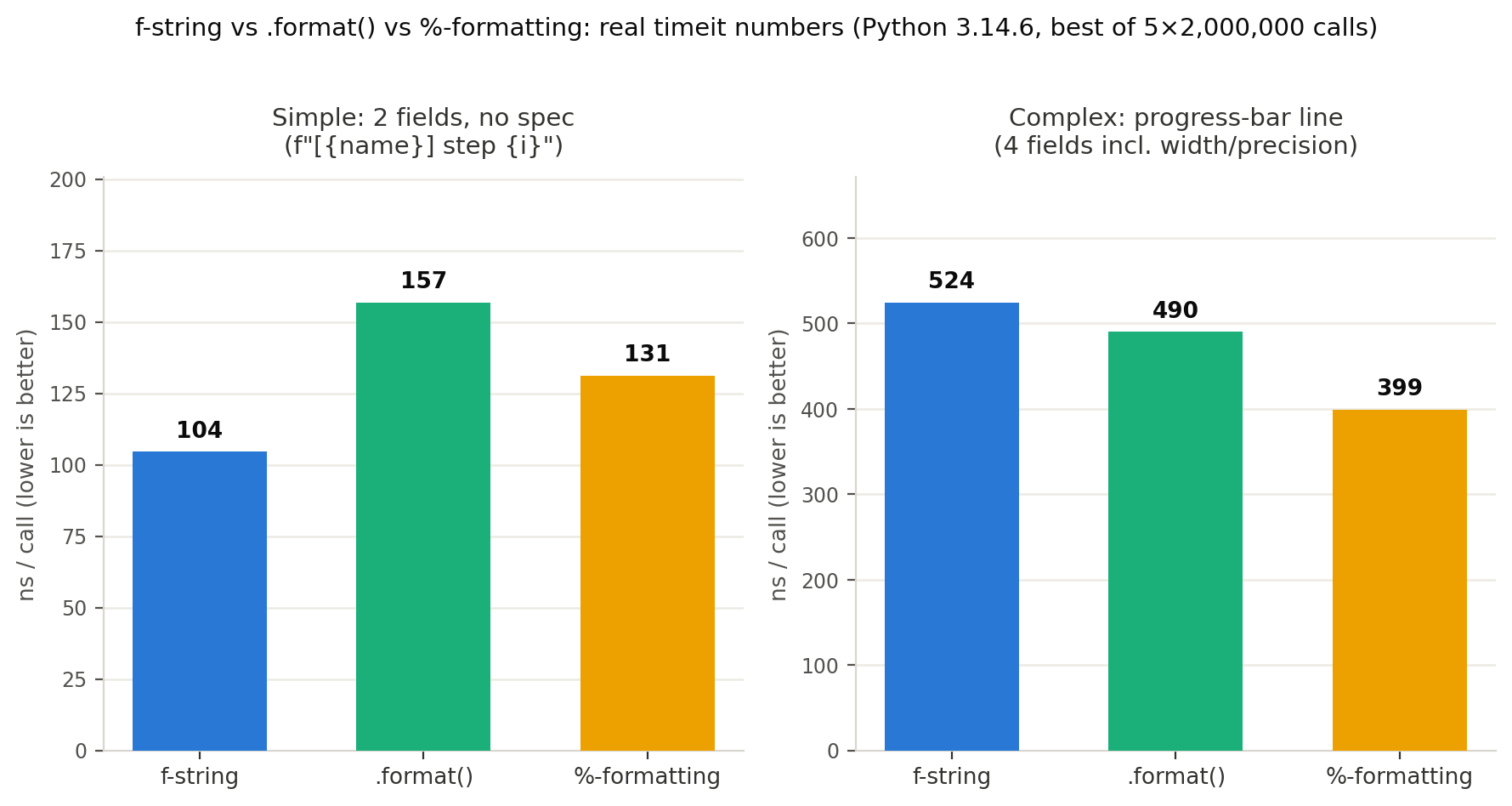
Takeaway: when building strings with complex format specs at high frequency — as in a progress bar — don’t assume f-strings are fastest; benchmark your actual workload. That said, all three methods here cost only a few hundred nanoseconds per call, so for a progress display that sleeps 10ms (10,000,000 ns) between updates, the choice makes no perceptible difference. Formatting performance only matters in hot loops running hundreds of thousands of times per second or more.
Cross-Platform Considerations
ANSI escape sequences work natively on Linux and macOS terminals, but the traditional Windows Command Prompt (cmd.exe) does not support them.
Handling Windows
Windows Terminal and PowerShell on Windows 10+ do support ANSI escape sequences, but for compatibility with older environments, use the colorama library.
# pip install colorama
from colorama import init, Fore, Style

# Enable ANSI escapes on Windows
init()

# Colored output with colorama
print(Fore.GREEN + "Success" + Style.RESET_ALL)
print(Fore.RED + "Error" + Style.RESET_ALL)
Simply calling colorama.init() makes ANSI escape sequences work correctly on Windows. On Linux/macOS it does nothing (no side effects), making it suitable for cross-platform code.
Branching with os.name
If you prefer not to use colorama, you can branch based on os.name.
import os
import sys

def supports_ansi():
    """Check if the terminal supports ANSI escape sequences"""
    if os.name == "nt":
        # Supported on Windows 10 build 10586+
        return os.environ.get("WT_SESSION") is not None  # Windows Terminal
    return hasattr(sys.stdout, "isatty") and sys.stdout.isatty()

if supports_ansi():
    GREEN = "\033[32m"
    RESET = "\033[0m"
else:
    GREEN = ""
    RESET = ""

print(f"{GREEN}Status: OK{RESET}")
An Encoding Pitfall: UnicodeEncodeError
If your progress bar uses █/░ block characters, or your status messages use emoji (like ✅), you can run into a UnicodeEncodeError on certain systems. The cause is that sys.stdout’s encoding doesn’t support the characters you’re trying to write — typically on Windows, where the Command Prompt’s default legacy codepage (e.g. cp1252 or cp932, neither of which is UTF-8) can’t represent them.
Here’s a concrete reproduction, forcing sys.stdout’s encoding to cp1252.
import sys

print("stdout encoding:", sys.stdout.encoding)
print(f"Progress 100% done ✅")
$ PYTHONIOENCODING=cp1252 python3 encoding_bug.py
stdout encoding: cp1252
Traceback (most recent call last):
  File "encoding_bug.py", line 4, in <module>
    print(f"Progress 100% done ✅")
UnicodeEncodeError: 'charmap' codec can't encode character '✅' in position 19: character maps to <undefined>
cp1252 cannot represent the emoji, so print()’s internal file.write() call fails to encode it and raises the exception directly.
Fix 1: force UTF-8 explicitly via the PYTHONIOENCODING environment variable.
$ PYTHONIOENCODING=utf-8 python3 encoding_bug.py
stdout encoding: utf-8
Progress 100% done ✅
Fix 2: call sys.stdout.reconfigure() inside the script to force UTF-8 regardless of the runtime locale (Python 3.7+).
import sys

sys.stdout.reconfigure(encoding="utf-8")
print("stdout encoding after reconfigure:", sys.stdout.encoding)
print(f"Progress 100% done ✅")
stdout encoding after reconfigure: utf-8
Progress 100% done ✅
Both fixes were verified directly: with cp1252 forced, the script reliably raises UnicodeEncodeError, and either PYTHONIOENCODING=utf-8 or sys.stdout.reconfigure(encoding="utf-8") resolves it. If you distribute a CLI tool that might run on Windows, calling sys.stdout.reconfigure() at the top of your entry point is a safe defensive measure.
Library Comparison: Manual vs tqdm vs rich
Choose the right approach based on your use case.
| Feature | Manual (\r / ANSI) | tqdm | rich |
|---|---|---|---|
| External dependency | None | pip install | pip install |
| Progress bar | Must build yourself | One-liner | One-liner |
| Multiple bars | Must build yourself | Supported | Supported |
| Table display | Not available | Not available | Supported |
| Colored output | Manual ANSI codes | Limited | Easy with Rich Markup |
| Windows support | Needs colorama | Automatic | Automatic |
| Customizability | Full control | Moderate | High |
| Learning curve | Low (good for learning) | Low | Moderate |
| Best for | Lightweight, learning | Loop processing | Rich CLI applications |
For simple overwrite displays, use the techniques from this article. For progress bars in loops, consider tqdm . For rich CLI applications, consider rich .
Modern Python Output Libraries
Beyond overwriting print output, there are libraries that provide rich terminal output.
The rich Library
rich can display colored text, tables, progress bars, and more in the terminal.
from rich.console import Console
from rich.table import Table

console = Console()

# Progress display
from rich.progress import track
import time

for i in track(range(100), description="Processing..."):
    time.sleep(0.01)

# Status display (with spinner)
with console.status("Computing..."):
    time.sleep(2)
    console.print("[bold green]Done![/bold green]")
Progress Bars with tqdm
tqdm provides progress bars with minimal code. It is widely used as an alternative to manual overwrite-based displays.
from tqdm import tqdm
import time

for i in tqdm(range(100)):
    time.sleep(0.01)
Recent CPython Developments Worth Knowing
We checked whether recent CPython versions changed anything about print/sys.stdout buffering itself.
- Free-threaded (no-GIL) builds: the free-threaded build based on PEP 703 was introduced experimentally in Python 3.13, and became officially supported in Python 3.14 (released October 2025). Single-threaded overhead also dropped from roughly 35-40% in 3.13 to roughly 5-10% in 3.14. However, based on CPython’s official documentation (
Thread Safety Guarantees
,
Python support for free threading
), neither page documents any change to
print()’s orsys.stdout’s buffering/flushing semantics. Free-threading changes how Python bytecode executes concurrently across threads; the per-stream buffering-mode logic described in this article appears unaffected. - A larger default buffer size: as noted above,
io.DEFAULT_BUFFER_SIZEwas 128 KiB (131072 bytes) on the 3.14.6 install used to verify this article, up from the 8 KiB default that had been in place since the Python 2 era. This was tracked and implemented in CPython issue #117151 as a bulk-I/O performance improvement. It means more data can accumulate before a flush under full buffering, but the underlying line-buffering vs. full-buffering mechanism itself is unchanged.
We found no breaking changes to the fundamental print()/\r-overwrite behavior described in this article.
Related Articles
- Building a Progress Bar in Python from Scratch (Without tqdm) - A practical application of the carriage return and ANSI escape techniques covered in this article, building a full progress bar from scratch.
- Creating 3D Animations (GIF) with Python Matplotlib - Rich output and visualization techniques with Matplotlib
- Python Regex Practical Guide: From re Module Basics to Performance Optimization - Practical usage of Python standard libraries