What is GitHub Actions?
GitHub Actions is a CI/CD (Continuous Integration/Continuous Delivery) platform that allows you to automate software development workflows directly within your GitHub repository. It automates tasks such as building, testing, and deploying code to streamline the development process.
Workflows are defined by placing YAML files in the following directory structure at the root of your repository:
.github/workflows/{filename}.yml
YAML File Structure
A GitHub Actions workflow YAML file consists of the following main elements:
name: { workflow name } # Workflow name displayed in the GitHub UI

on:
  # Specify trigger events for the workflow
  # Example 1: push event (on push to specified branches)
  push:
    branches:
      - main # or master
      - develop # Multiple branches can be specified

  # Example 2: pull_request event (on PR to specified branches)
  pull_request:
    branches:
      - main
      - develop

  # Example 3: schedule event (specify time in CRON format)
  # Specified in UTC; for JST, subtract 9 hours
  schedule:
    - cron: "45 10 * * *"

  # Other trigger events: https://docs.github.com/en/actions/using-workflows/events-that-trigger-workflows

jobs:
  # Define jobs to execute
  build: # Job ID (arbitrary name)
    name: Build and Test # Job display name
    runs-on:
      ubuntu-latest # Specify the runner environment
      # ubuntu-latest, windows-latest, macos-latest, etc.
      # Or a specific version (ubuntu-20.04)

    steps:
      # Sequence of steps executed within the job
      - uses: actions/checkout@v4 # Action to checkout repository code
        # Use GitHub-provided or community actions

      - name: Install dependencies # Step name
        run: |
          npm install # Example: Install Node.js dependencies
          pip install -r requirements.txt # Example: Install Python dependencies

      - name: Build code # Step name
        run: |
          npm run build # Example: Build the project
          make # Example: Run make command

      - name: Run tests # Step name
        run: |
          npm test # Example: Run tests
          pytest # Example: Run Python tests
Key Elements Explained
name: The name of the entire workflow. Displayed in GitHub’s Actions tab.on: Defines when the workflow is triggered. Various events such aspush,pull_request,schedule, etc. can be specified.jobs: Defines a series of jobs to be executed within the workflow. Each job can run independently or sequentially with dependencies.runs-on: Specifies the virtual environment (runner) for the job. You can choose the latest versions or specific versions of Ubuntu, Windows, and macOS.steps: A sequence of individual tasks executed within a job.uses: Uses an existing action (a reusable unit of work).actions/checkout@v4is an official action that checks out repository code to the runner.name: The display name of the step.run: Executes shell commands. Multiple commands can be written using|.
That covers the minimal set of building blocks. The rest of this article digs into the practical questions every team eventually runs into: how do jobs actually get scheduled, how safe are your secrets really, how do you speed up CI, and how tightly should permissions be scoped — each backed by concrete YAML.
The Execution Model: Jobs Run in Parallel, Steps Run Sequentially
To predict how a workflow will actually behave, you need three rules:
- Multiple
jobswithin the same workflow run in parallel by default. Unless you specify a dependency withneeds, jobs don’t wait for one another. - The
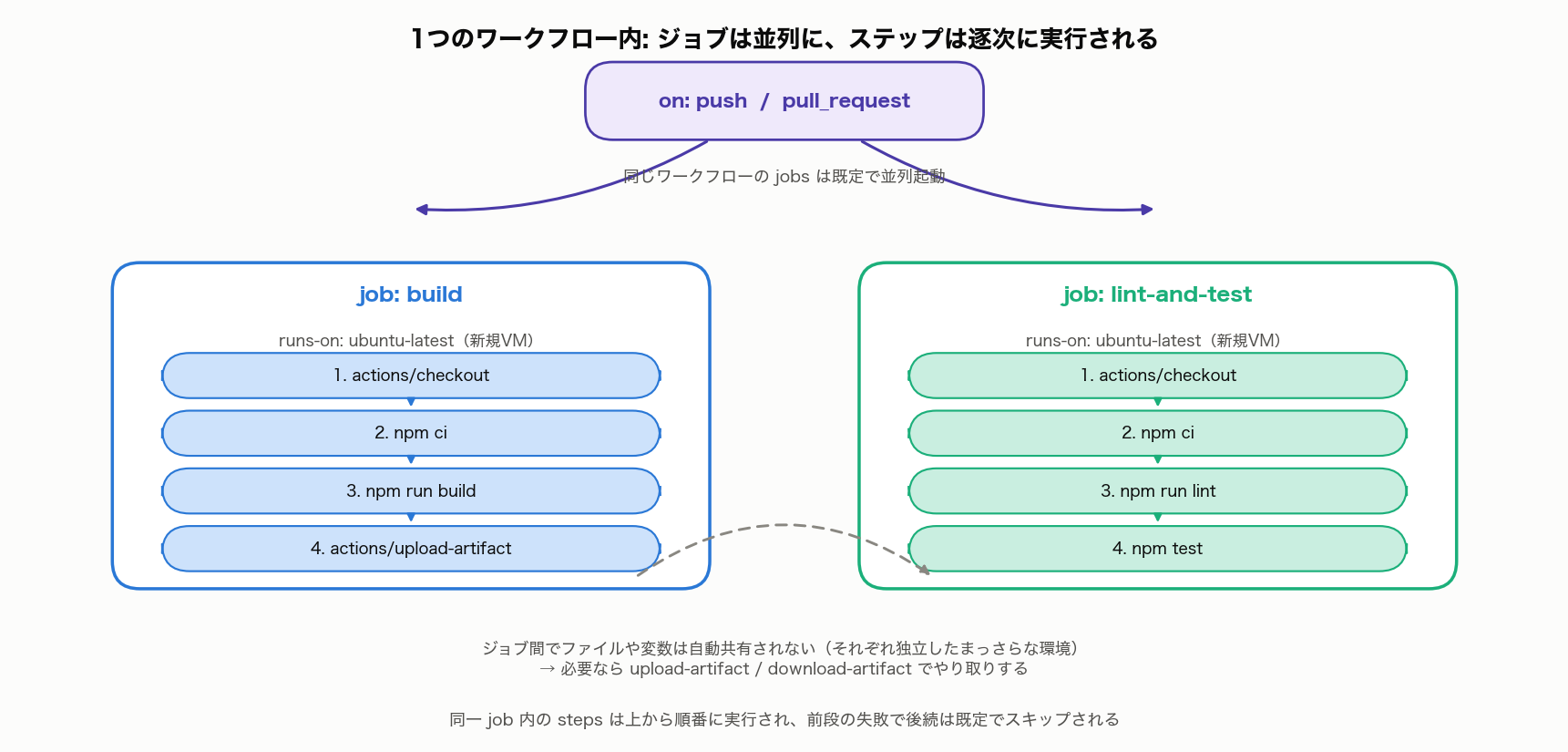
stepsinside a single job always run sequentially, top to bottom. The next step doesn’t start until the previous one finishes, and if a step fails, the remaining steps in that job are skipped by default. - Each job runs on its own fresh (clean) virtual machine (runner). Even within the same workflow, moving from one job to the next means the filesystem, environment variables, and running processes are not carried over at all.
That third rule is the one beginners most often miss. It’s tempting to assume that because two jobs belong to the “same workflow,” an artifact built in Job A should just be available to Job B. In reality, Job B boots on a completely separate VM and has no access whatsoever to Job A’s filesystem. To pass state (build artifacts, generated files, computed results) between jobs, you must explicitly use one of:
actions/upload-artifactin Job A andactions/download-artifactin Job Bactions/cache, keyed on content, so a later job (or a later workflow run) can restore it- Job
outputs, for small string values only (a version number, a boolean flag, etc.)
The diagram below shows two jobs (build and lint-and-test) starting in parallel from a push/pull_request trigger, with steps inside each job executing top to bottom. The dashed line connecting the two jobs represents the fact that nothing is shared automatically — passing artifacts across jobs requires upload-artifact/download-artifact.
Grounding it in a real workflow
This repository (web-source, which also builds this blog) has its own .github/workflows/deploy.yml, structured like this (a real excerpt):
name: Deploy to GitHub Pages

on:
  push:
    branches:
      - main
  workflow_dispatch:

jobs:
  build-and-deploy:
    runs-on: ubuntu-latest
    steps:
      - name: Checkout
        uses: actions/checkout@v4
        with:
          fetch-depth: 0

      - name: Setup Node
        uses: actions/setup-node@v4
        with:
          node-version: 20
          cache: "npm"
      # ... (omitted: npm ci, type-check, Hugo/Next.js build, deploy, E2E tests)
This workflow consists of a single job, build-and-deploy. That means the Hugo build, the Next.js build, the deploy step, and the E2E tests all run sequentially on the same runner, so there’s no need to think about passing state between jobs. Had this been split into a “build” job and a “deploy” job instead, the deploy job would have failed to find the build output (the dist/ directory) unless it was explicitly bridged across with upload-artifact/download-artifact. Keeping it as one job is a common, deliberate way to sidestep exactly this “every job gets a clean slate” constraint.
Edge Case (a): Handling Secrets and Masking
The secrets context
Sensitive values like API keys and deploy keys are registered under Settings > Secrets and variables > Actions, and referenced in a workflow via the secrets.<name> context.
- name: Deploy to yuhi-sa.github.io
  uses: peaceiris/actions-gh-pages@v4
  with:
    deploy_key: ${{ secrets.DEPLOY_KEY }}
    external_repository: yuhi-sa/yuhi-sa.github.io
    publish_branch: main
    publish_dir: ./dist
(This, too, is a real excerpt from deploy.yml — it passes an SSH deploy key as secrets.DEPLOY_KEY and pushes directly to yuhi-sa/yuhi-sa.github.io.)
Masking in the logs
If a registered secret’s value appears verbatim in a workflow run’s log, GitHub Actions automatically replaces it with ***. For example, this step:
- name: Debug output (should be avoided in practice)
  run: echo "token is ${{ secrets.DEPLOY_KEY }}"
produces this in the actual log — the value itself is never visible:
token is ***
This masking mechanism works by mechanically checking whether the log text contains a substring that exactly matches a registered secret’s value, and substituting it. The flip side is that if you emit the secret in a transformed form rather than as-is, masking does nothing.
A real incident: bypassing the masking
This isn’t a theoretical concern — it played out as a large-scale real-world incident. In March 2025, the third-party action tj-actions/changed-files, used by over 23,000 repositories, was tampered with and malicious code was injected (
CVE-2025-30066
). The malicious code dumped the memory of the runner’s worker process, searched it for anything that looked like a secret, and base64-encoded it twice before printing it to the log — which sidestepped GitHub’s automatic masking entirely. Because masking can only recognize an exact match against a secret’s raw value, encoding it and thereby changing its appearance let it slip straight through. Since public repositories also expose their workflow logs publicly, AWS access keys, GitHub PATs, npm tokens, and private RSA keys were leaked for anyone to read.
Two practical lessons follow:
- Pin third-party actions to a commit SHA, not a mutable tag (e.g.
uses: tj-actions/changed-files@11052...rather than@v4). A tag can be repointed later; a SHA is bound to specific, immutable content. - Masking is not a silver bullet. Base64-encoding a secret, splitting it into pieces, concatenating it with other values, or using a secret shorter than 4 characters can all let it slip past the masking mechanism and end up in the logs.
Another easily-missed gap: artifacts and caches
Masking only applies to the log’s standard output — it does not inspect files uploaded via actions/upload-artifact or content stored via actions/cache. For example, if you accidentally upload a temporary file containing a secret (a generated .env file, a verbose build log) as an artifact, the run log may look perfectly clean while anyone who downloads that artifact sees the value in the clear. It’s not enough to avoid echo-ing a secret directly — you also need to make sure files that might contain a secret never leave the job as an artifact or cache entry.
Edge Case (b): Matrix Builds
To test across multiple OSes or language versions, strategy.matrix generates multiple jobs from a single job definition.
jobs:
  test:
    strategy:
      fail-fast: false # Default is true. Set false if one failure shouldn't cancel the rest
      matrix:
        os: [ubuntu-latest, windows-latest, macos-latest]
        node-version: [18, 20, 22]
    runs-on: ${{ matrix.os }}
    steps:
      - uses: actions/checkout@v4
      - uses: actions/setup-node@v4
        with:
          node-version: ${{ matrix.node-version }}
      - run: npm ci
      - run: npm test
With three values for os and three for node-version, this automatically generates one job per combination (3 × 3 = 9 jobs), all running in parallel. Each job receives its own matrix.os and matrix.node-version values as context.
fail-fast behavior
strategy.fail-fast defaults to true. With that default, as soon as any one job in the matrix fails, GitHub cancels every other still-running job in the matrix. This is designed for fast feedback — if Node 18 already failed, there’s no point waiting on 19 and 20.
There are situations, though, where you should disable it with fail-fast: false:
- Checking a full compatibility matrix before a release — what you actually want to know is “it fails on Node 18 but works on 20 and 22,” and a single failure cancelling the rest would hide exactly that information.
- Running independent checks in parallel — e.g. OS-specific E2E tests, where you want to catch a Windows-only bug and a macOS-only bug in the same run.
- Investigating a flaky test — comparing which combinations reproduce it and which don’t.
Edge Case (c): Cache Design
Installing dependencies (npm ci, pip install, etc.) on every run when nothing has changed is wasted work. actions/cache lets you save a given path under a key and reuse it in later jobs.
- name: Cache npm dependencies
  uses: actions/cache@v4
  with:
    path: ~/.npm
    key: ${{ runner.os }}-npm-${{ hashFiles('**/package-lock.json') }}
    restore-keys: |
      ${{ runner.os }}-npm-
The same pattern works for Python:
- name: Cache pip dependencies
  uses: actions/cache@v4
  with:
    path: ~/.cache/pip
    key: ${{ runner.os }}-pip-${{ hashFiles('**/requirements.txt') }}
    restore-keys: |
      ${{ runner.os }}-pip-
Designing the key
The standard practice is to include a hash of the lockfile’s contents in key, via hashFiles('**/package-lock.json'). This satisfies two requirements at once:
- As long as the lockfile’s contents don’t change, the key stays the same, giving a cache hit and skipping the re-download/re-install of dependencies
- The instant the lockfile changes (dependencies changed), the key changes too, forcing a cache miss so the new set of dependencies gets installed correctly
If you key the cache on a fixed string with no hash, it keeps hitting even after you update dependencies — a real footgun where you end up silently running stale versions. restore-keys is a fallback for when the key doesn’t match exactly: it partially reuses “the most recent cache that at least matches the OS” and only updates the delta, still speeding things up.
This repository’s own deploy.yml uses actions/cache@v4 for both the Next.js build cache and the Playwright browser cache.
- name: Cache Next.js build
  uses: actions/cache@v4
  with:
    path: |
      apps/calcbox/.next/cache
      apps/devtoolbox/.next/cache
      apps/pomodoro/.next/cache
    key: ${{ runner.os }}-nextjs-${{ hashFiles('**/package-lock.json') }}-${{ hashFiles('apps/**/*.ts', 'apps/**/*.tsx') }}
    restore-keys: |
      ${{ runner.os }}-nextjs-${{ hashFiles('**/package-lock.json') }}-
      ${{ runner.os }}-nextjs-
- name: Cache Playwright browsers
  uses: actions/cache@v4
  id: playwright-cache
  with:
    path: ~/.cache/ms-playwright
    key: ${{ runner.os }}-playwright-${{ hashFiles('**/package-lock.json') }}

- name: Install Playwright Browsers
  if: steps.playwright-cache.outputs.cache-hit != 'true'
  run: npx playwright install --with-deps chromium

- name: Install Playwright system deps (cached browser)
  if: steps.playwright-cache.outputs.cache-hit == 'true'
  run: npx playwright install-deps chromium
The Next.js cache key concatenates both a hash of package-lock.json and a hash of every .ts/.tsx file under apps/. That way the key changes not just when dependencies change but also when the TypeScript source itself changes, so a stale build cache never lingers. The Playwright example gives the cache step an id: playwright-cache and branches on steps.playwright-cache.outputs.cache-hit with if: to run a different step depending on whether the cache hit or missed. On a hit, the entire browser-binary download is skipped and only the system dependency packages get installed.
Measured timing, from this repository’s own CI history
Using gh run view <run-id> --json jobs against this repository’s real workflow run history, comparing a Playwright cache hit against a miss gave these measured numbers:
| Case | Relevant step | Duration | When (Run ID) |
|---|---|---|---|
| Cache miss | Install Playwright Browsers (downloads and installs the browser binary itself) | ~25s | 2026-07-02 (Run 28593370712) |
| Cache hit | Install Playwright system deps (cached browser) (system packages only) | ~15–20s | 2026-07-18 (Run 29636104857 and others) |
In this particular case the difference is a modest 6–10 seconds, not dramatic — most of that time is spent on apt-installing system dependency packages, which is required either way regardless of cache hit/miss. Looking only at the browser binary’s own download and extraction, the cache hit shaves off several to a dozen-plus seconds.
By contrast, dependency caches covering an entire node_modules tree or a Python virtual environment — where there are many more packages, each taking longer to download and build — typically show a much bigger gap between a hit and a miss (this is a general, illustrative pattern, not a number measured in this repository). How much a cache actually helps depends heavily on what’s being cached, so rather than assuming “adding a cache always makes things dramatically faster,” it’s worth measuring it on your own workflow.
Edge Case (d): Minimizing GITHUB_TOKEN Permissions
Every workflow run is handed a short-lived token, secrets.GITHUB_TOKEN, automatically issued by GitHub. It’s used for API access to the repository (checkout, commenting on issues, creating releases, etc.), but exactly how much it can do by default depends on the repository’s settings.
- Under Settings > Actions > General > Workflow permissions, a repository can be set to “Read and write permissions” (read/write across most scopes) or “Read repository contents permission” (read-only).
- Repositories created after February 2023 default to the read-only side, but older repositories may still default to read/write.
Rather than relying on the repository-wide default, the best practice — the Principle of Least Privilege — is to declare an explicit permissions: block in the workflow file itself.
permissions:
  contents: read # Only allow reading code
  pull-requests: write # Additionally allow posting comments on PRs
  # Any scope not listed here is automatically set to "no access"
permissions can be set at the workflow level or per job. When different jobs need different permissions (e.g. a build job only needs contents: read, but only the deploy job needs contents: write), scoping it per job is stricter still.
Worth noting: this repository’s own deploy.yml does not declare an explicit permissions: block, so it relies on the repository’s default. The deploy step itself pushes to an external repository using an SSH deploy key (secrets.DEPLOY_KEY), and doesn’t depend on GITHUB_TOKEN permissions for anything sensitive, so there’s no actual harm here — but it’s a good real example of where applying the Principle of Least Privilege strictly would mean adding an explicit permissions: { contents: read }.
Notable Changes in 2024–2025
GitHub Actions is an actively evolving platform. Here are two relatively recent changes directly relevant to this article.
actions/cachebackend overhaul (February 2025): On February 1, 2025, GitHub retired the legacy cache-service backend (the v1/v2 API) and moved entirely to a new cache service. The new backend is reported to cut cache upload time by up to 80% on GitHub-hosted runners. As part of this migration,actions/cacheneeded to bev4.2.0or later (orv3.4.0or later); workflows left on older pinned versions started failing to upload/download caches. If you’re still pinned to an old version (including by commit SHA), update to the latestv4release.- The
tj-actions/changed-filessupply chain compromise (March 2025, CVE-2025-30066): As described above, a widely-used third-party action was tampered with, leaking secrets into workflow logs. In its wake, the importance of pinning third-party actions to a commit SHA rather than a tag, and periodically checking GitHub’s security advisories , has been reinforced industry-wide.
Both are real, verified changes/incidents, current as of this article’s writing (July 2026). GitHub Actions itself, its actions, and its cache service will keep changing, so in production it’s worth periodically checking the official documentation and security advisories.
Summary
On the surface, a GitHub Actions workflow is simple — on/jobs/steps — but running one in production without incident requires understanding the execution model and security surface underneath it:
- Jobs run in parallel by default; steps run sequentially. Sharing state across jobs requires
upload-artifact/download-artifactor a cache. - Secrets are masked as
***in logs, but a transformation (like encoding) lets them slip through untouched. Pin third-party actions to a commit SHA, not a tag. - A matrix build auto-generates one job per combination.
fail-fast: falseswitches to “run everything to completion and show all results” instead of cancelling on the first failure. - Design a cache key around a hash of the lockfile, so it reliably misses the instant dependencies change.
- Don’t rely on the repository’s default for
GITHUB_TOKEN— declare an explicitpermissions:block in the workflow file to minimize it.
GitHub Actions is highly flexible and can integrate with various tools and services to build complex workflows. Start with a small workflow and grow it, keeping each of these points in mind one at a time.