Everyone who has used Linux has run into Permission denied at some point. In the vast majority of cases, the cause is that the permissions set on a file or directory simply don’t allow the operation you’re trying to perform. This article works through Linux permissions systematically: starting from the basics of reading ls -l output, through what chmod’s octal numbers actually mean, changing ownership with chown/chgrp, how umask determines default permissions, the special SUID/SGID/sticky-bit permissions, and finally POSIX ACLs and capabilities for when the basic 9 bits aren’t enough.
1. What Are Linux Permissions?
On a Linux filesystem, every file and directory carries permission information describing who can do what to it. The most basic command for checking this is ls -l.
$ ls -l file.sh
-rwxr-xr-- 1 yuhi-sa staff 220  7 20 09:30 file.sh
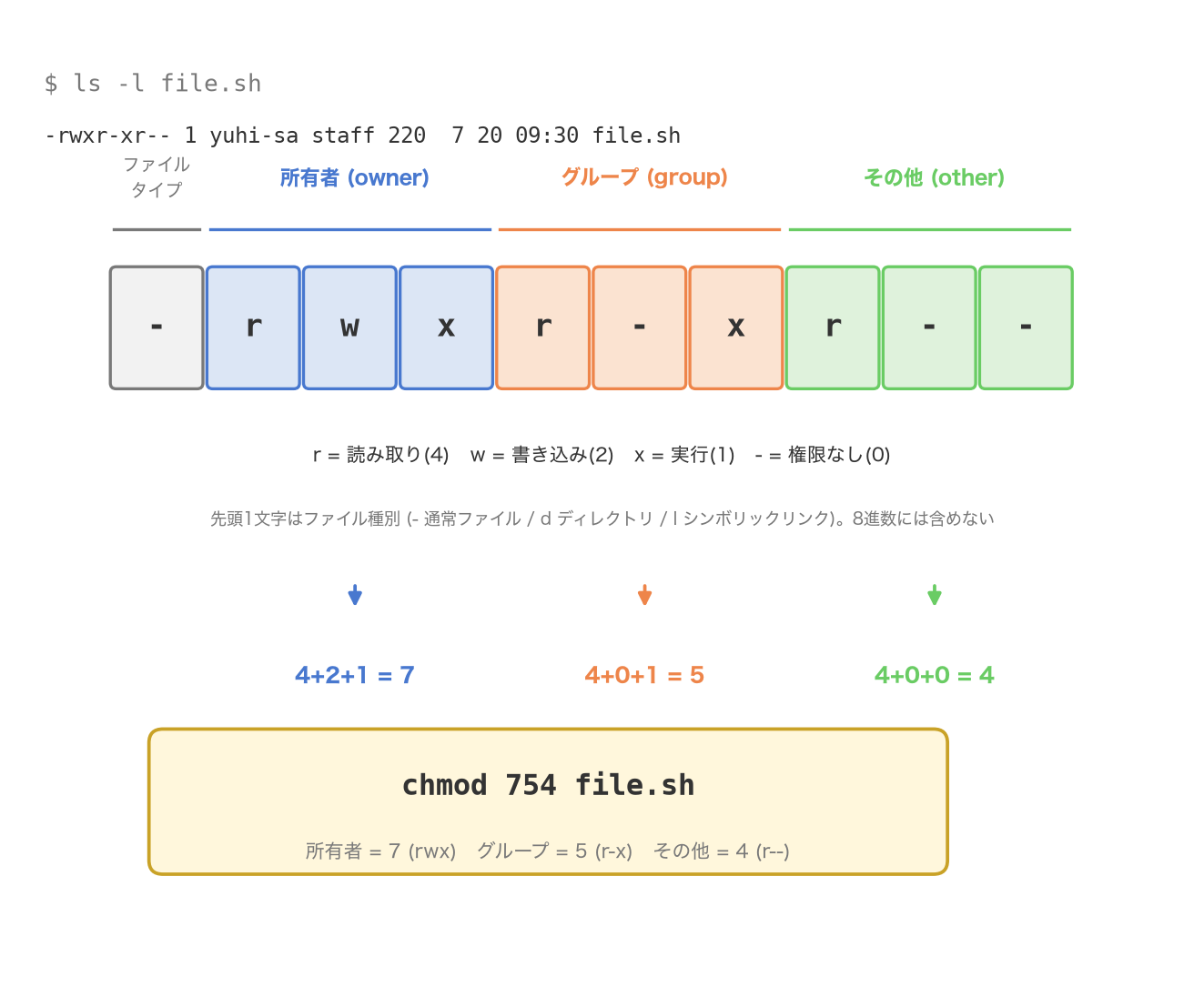
The leading 10-character string -rwxr-xr-- represents the file’s type and its permissions. Breaking it down:
Figure 1: Decomposing -rwxr-xr-- into its 9 permission bits and converting to octal (754)
Character 1: File Type
The first character is not a permission bit — it indicates the file type. The common ones are:
| Character | Meaning |
|---|---|
- | Regular file |
d | Directory |
l | Symbolic link |
p | Named pipe (FIFO) |
s | Socket |
b / c | Block / character device |
Characters 2–10: Three Permission Classes × rwx
The remaining 9 characters describe, for each of three classes — owner (user), group, and other — whether r (read), w (write), and x (execute) are permitted, three characters per class, with - meaning “not permitted.” In other words, this is a set of 9 boolean bits — a bitmap — and this is what people mean by “basic permissions” or “9-bit permissions.”
Why three classes — owner, group, and other? Instead of assigning permissions to individuals one by one, users are grouped into three layers — “the owner themself,” “members of a particular group,” and “everyone else” — which lets a small number of bits (3 classes × 3 bits = 9 bits) provide permission management that’s sufficient for most practical purposes. When finer-grained control is needed, the answer is ACLs, covered in Section 7.
In the -rwxr-xr-- example, the owner has full read/write/execute (rwx), the group has read and execute only (r-x), and other has read only (r--).
2. What chmod’s Octal Numbers Mean
The command that changes permissions is chmod (change mode). It supports two notations: numeric (octal) mode and symbolic mode.
Numeric mode: adding up r/w/x as 4, 2, 1
r, w, and x are each assigned a value — 4, 2, and 1 respectively — and summing the values of the permissions that are present yields a single octal digit. Since there are three classes, three digits together describe the entire permission set.
| Permission | Binary | Octal |
|---|---|---|
--- (none) | 000 | 0 |
--x (execute only) | 001 | 1 |
-w- (write only) | 010 | 2 |
-wx | 011 | 3 |
r-- (read only) | 100 | 4 |
r-x | 101 | 5 |
rw- | 110 | 6 |
rwx (all) | 111 | 7 |
For -rwxr-xr-- above: owner rwx=7, group r-x=5, other r--=4, so this can be expressed as chmod 754. Here are common combinations you’ll actually use:
| Number | Meaning | Typical use |
|---|---|---|
777 | Everyone can read, write, and execute | Almost always a bad idea — anyone can tamper with or delete the file |
755 | Owner rwx, others read/execute | The standard for executable scripts and directories |
700 | Owner only, rwx | Private keys, personal scripts |
644 | Owner read/write, others read only | Typical config files, HTML, etc. |
600 | Owner only, read/write | Private keys, configs containing passwords |
640 | Owner read/write, group read only | Log files shared within a group |
chmod 755 deploy.sh   # owner rwx, group/other r-x
chmod 644 index.html  # owner rw-, group/other r--
chmod 600 id_rsa      # owner rw- only, no access for anyone else
Symbolic mode: u/g/o/a combined with +/-/=
Numeric mode is convenient for setting the whole permission set at once, but when you only want to change one part — e.g., “just add execute for the owner” — symbolic mode is more natural. The syntax is [who][operator][permission].
| Who | Meaning |
|---|---|
u | Owner (user) |
g | Group |
o | Other |
a | All (also the default when omitted) |
| Operator | Meaning |
|---|---|
+ | Add the permission |
- | Remove the permission |
= | Set exactly to the given permissions (anything not listed is removed) |
chmod u+x script.sh       # add execute for the owner
chmod go-w secret.conf    # remove write from group and other
chmod a=r public.txt      # set everyone to read-only
chmod u=rwx,g=rx,o=r file # equivalent to 754, expressed symbolically
There’s also a special permission letter, X (capital). It grants execute permission only “if the target is a directory, or if execute is already set for some class” — useful with recursive application like chmod -R a+X, where you want directories to become traversable without accidentally making every regular file executable too.
The -R flag applies the change recursively to a directory tree, but because it can unintentionally add or strip SUID/SGID bits (discussed below), recursive application to a tree that contains special permissions needs to be done carefully.
3. Ownership: chown and chgrp
Of the three permission classes (owner, group, other), the commands that change “who the owner is and which group the file belongs to” are chown (change owner) and chgrp (change group).
chown yuhi-sa file.txt          # change owner to yuhi-sa
chown yuhi-sa:staff file.txt    # change owner and group at once
chown :staff file.txt           # change group only (same as chgrp staff file.txt)
chgrp staff file.txt            # dedicated command for changing group only
chown -R www-data:www-data /var/www/app  # change recursively for a directory tree
Changing ownership normally requires root (sudo). This is because if any user could freely reassign ownership of someone else’s files to themselves, permission-based access control would be meaningless. On Linux, this restriction is enforced specifically by the CAP_CHOWN capability (covered in Section 7).
The reason for the three-class ownership model was explained above; in practice, chown and chmod are typically combined to design a permission model — for example, “include the user the web server process runs as (e.g. www-data) in the group, while the deployer manages the file as owner.”
4. umask and Default Permissions
When you create a new file or directory, its permissions are set automatically without you specifying anything. This is controlled by umask (user file-creation mode mask).
umask is a mask value set on the shell or process that subtracts (turns off) specific bits from the “base permission” of a newly created file or directory. The formula is:
final permission = base permission & ~umask
The base permission is 666 for regular files (no execute bit) and 777 for directories (which need x to be traversable). Let’s work through the commonly used default, umask 022:
$ umask
0022
$ touch newfile.txt && ls -l newfile.txt
-rw-r--r-- 1 yuhi-sa staff 0 7 20 09:30 newfile.txt
$ mkdir newdir && ls -ld newdir
drwxr-xr-x 2 yuhi-sa staff 64 7 20 09:30 newdir
- File:
666 & ~022=666 - 022=644(rw-r--r--) - Directory:
777 & ~022=777 - 022=755(rwxr-xr-x)
The umask bits 022 mean “strip write permission from group and other.” Changing the umask makes default permissions stricter or looser.
umask 077   # new files become 600, new directories become 700 (no access for anyone but owner)
umask 002   # allow group write too (useful for shared work directories)
umask only applies to the current shell session, so to make it persistent, set it in ~/.bashrc, /etc/profile, or similar. Depending on the server’s purpose, tightening the default beyond the standard — e.g. umask 027 (also blocking read for other) — is common practice as well.
5. Special Permissions: SUID, SGID, and Sticky Bit
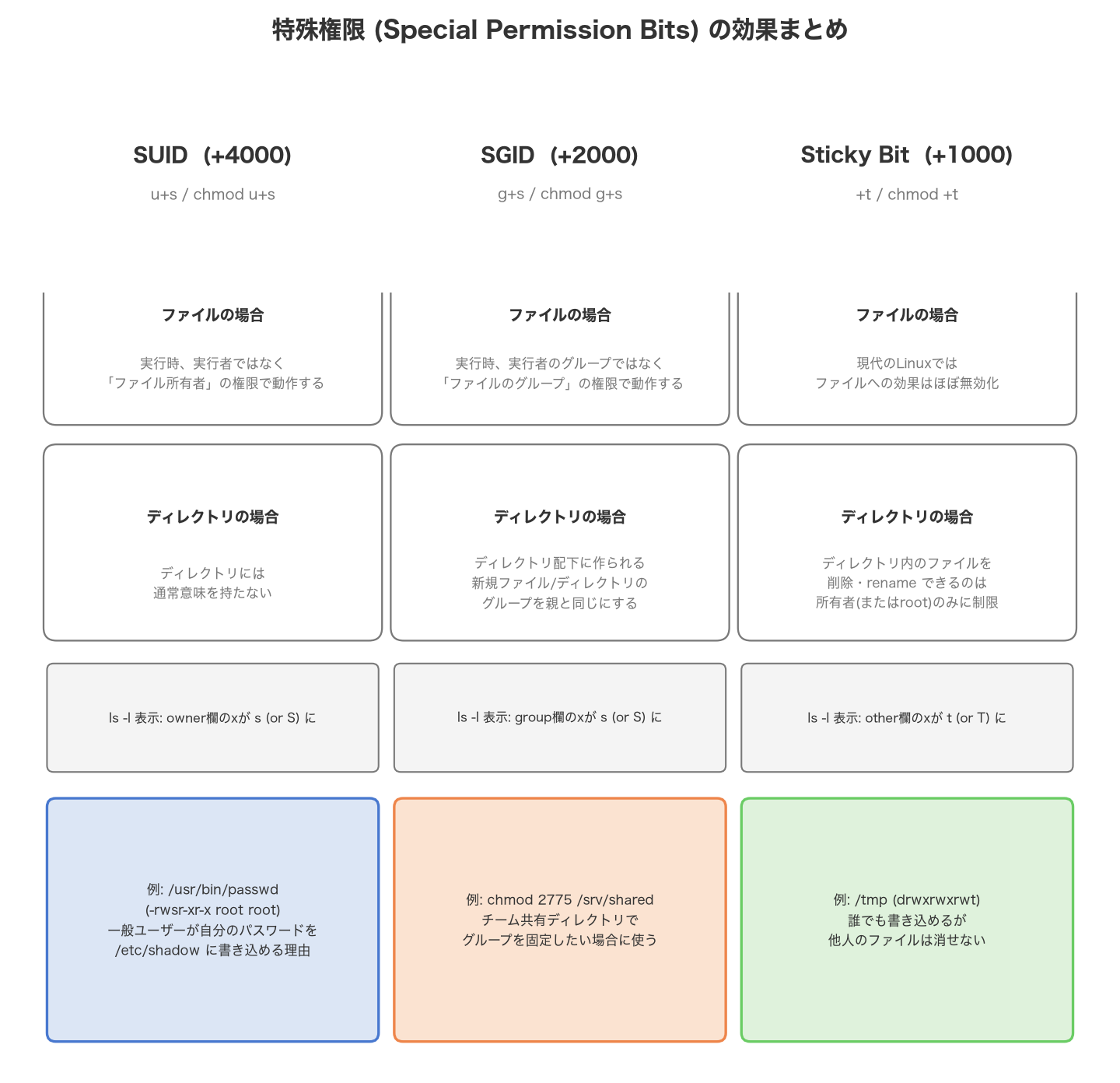
Beyond the basic 9 bits, Linux has three so-called special permissions. In numeric mode, these are specified with a fourth (leading) digit: 4 for SUID, 2 for SGID, 1 for sticky bit.
Figure 2: Summary of what SUID, SGID, and the sticky bit each do
SUID (Set User ID, +4000)
An executable with SUID set runs with the privileges of the file’s owner, not the user who invoked it. The classic example is the passwd command.
$ ls -l /usr/bin/passwd
-rwsr-xr-x 1 root root 68208 ... /usr/bin/passwd
Notice that the owner’s execute bit position shows s instead of x. passwd is how a user changes their own password, but the password data itself lives in /etc/shadow, which ordinary users cannot write to. Because of SUID, passwd runs with root privileges only while it’s executing, which is what lets ordinary users update their own password entry.
SUID’s power comes with real risk: a vulnerability in a root-owned, SUID-set script or binary can become a foothold for a regular user to escalate to root. Periodically auditing SUID-set files with something like find / -perm -4000 is a basic security-operations habit. Note that setting SUID on a directory normally has no effect on Linux.
SGID (Set Group ID, +2000)
SGID behaves differently depending on whether it’s set on a file or a directory.
- On a file: like SUID, the program runs with the privileges of the file’s group, rather than the invoking user’s own group.
- On a directory: any new files or subdirectories created inside it automatically inherit the same group as the parent directory, rather than the creator’s own primary group.
The directory behavior is widely used for building shared team directories.
sudo chmod 2775 /srv/shared
sudo chown :teamdev /srv/shared
With this in place, no matter which member of the teamdev group creates a file, it’s automatically owned by the teamdev group, and every group member can edit it. Without SGID, each creator’s own primary group would end up attached to their files, leading to inconsistent permissions across the shared directory.
Sticky Bit (+1000)
The sticky bit is mainly used on directories. When set, only the file’s owner (or the directory’s owner, or root) can delete or rename a file inside that directory — even if other users have write access to the directory itself, they cannot delete files someone else created there.
The most familiar example is /tmp.
$ ls -ld /tmp
drwxrwxrwt 10 root root 4096 ... /tmp
Note the t in the “other” execute-bit position instead of x. /tmp is world-writable (rwxrwxrwx), but without the sticky bit, one user’s temporary file could be deleted or replaced by another, potentially malicious, user. The sticky bit prevents this, giving you “a shared, writable location where you still can’t touch other people’s files.” Historically, setting the sticky bit on a file itself was used to keep a program resident in swap, but on modern Linux this effect on regular files is essentially inert.
Uppercase S / T in Listings
Sometimes ls -l shows a special-permission bit as uppercase (S, T) instead of lowercase (s, t). This indicates a contradictory state: the special bit is set, but the corresponding execute bit (x) is not. For example, rwSr--r-- means “SUID is set, but the owner has no execute permission,” in which case SUID is effectively inert. Worth remembering as a sign of a misconfiguration.
6. What Directory Permissions Actually Mean
r, w, and x mean something different on directories than they do on files, which is a common source of confusion. In summary:
| Bit | Meaning on a directory |
|---|---|
r | Can list the filenames inside the directory (i.e. run ls) |
w | Can create, delete, or rename files inside the directory |
x | Can traverse the directory (needed for cd or path-based access to files inside) |
Two points are especially easy to get wrong:
w(write) governs the directory’s listing, not the contents of the files inside it. Whether you can edit a given file’s contents is determined by that file’s own permissions. Conversely, even if a file is600and unwritable by anyone but its owner, if the directory it lives in is writable, someone else can still delete that file. This is exactly why the sticky bit exists.- A directory without
xblocks access even if you know a filename inside it.xis the “pass-through” right, required for bothcd dirnameand path-based access likecat dirname/file.txt. A directory withrbut noxproduces the odd situation wherelsshows you the filenames, but you can’t actually reach the contents of any individual file.
$ mkdir noexec && touch noexec/secret.txt
$ chmod 644 noexec        # has rw but no x
$ ls noexec
secret.txt                # listing works (r is present)
$ cat noexec/secret.txt
cat: noexec/secret.txt: Permission denied  # can't traverse, so contents are unreachable
To reach a file via its path, every directory along that path needs x permission. If you hit Permission denied on a deeply nested file, check the permissions of the intermediate directories, not just the file itself.
7. ACLs and Capabilities: Beyond the 9 Bits
The three classes and 9 bits of owner/group/other are powerful, but they can’t express finer requirements like “grant one specific extra user access” or “give several different groups different levels of access.” POSIX ACLs (Access Control Lists) exist to go beyond this limit.
getfacl / setfacl
Using ACLs requires the acl package (standard, or trivially installable, on most distributions) and a filesystem that supports ACLs (ext4, XFS, and others support this natively).
# check the current ACL
$ getfacl report.csv
# file: report.csv
# owner: yuhi-sa
# group: staff
user::rw-
group::r--
other::r--

# grant user alice individual read/write access
$ setfacl -m u:alice:rw report.csv

# grant group dev additional read access
$ setfacl -m g:dev:r report.csv

# check that the ACL was applied (the trailing + is the tell)
$ ls -l report.csv
-rw-rw-r--+ 1 yuhi-sa staff 1024 ... report.csv

$ getfacl report.csv
user::rw-
user:alice:rw-
group::r--
group:dev:r--
mask::rw-
other::r--
The trailing + at the end of the permission string in ls -l is the sign that a file has an ACL in addition to the normal 9 bits.
ACL entries come in a few types: user (a specific user), group (a specific group), mask, and other. The mask entry plays an important role here: it acts as the upper bound on what’s actually granted by user entries (other than the owner), the group-object entry, and named-group entries. In other words, even if an individual ACL entry grants rw, if the mask only allows r, the effective permission is capped at r. Also note that in many implementations, running chmod to change the group permission bits will rewrite the mask entry.
Removing ACL entries:
setfacl -x u:alice report.csv   # remove only alice's entry
setfacl -b report.csv           # remove all ACL entries (revert to plain 9-bit permissions)
Capabilities: splitting up root’s all-or-nothing power
As touched on in the SUID section, the problem “only part of what this program does needs root, but running the whole thing as root is a real risk” is persistent. The modern answer, available since Linux 2.2, is capabilities: traditional root privileges are divided into discrete units that can be granted independently.
Representative capabilities include:
| Capability | Meaning |
|---|---|
CAP_NET_BIND_SERVICE | Allows binding to ports below 1024 (traditionally root-only) |
CAP_NET_ADMIN | Allows configuring network interfaces, modifying routing tables, etc. |
CAP_CHOWN | Allows changing ownership of arbitrary files |
CAP_DAC_OVERRIDE | Bypasses normal permission checks |
CAP_SYS_ADMIN | A broad, overloaded set of administrative operations including mounting and namespace management (easy to over-grant; use sparingly) |
For example, instead of running an entire web server process as root just so it can bind to port 80, you can grant only the specific capability it needs:
# grant only CAP_NET_BIND_SERVICE so the binary can bind port 80 without running as root
sudo setcap 'cap_net_bind_service=+ep' /usr/bin/myserver

# check which capabilities are attached
getcap /usr/bin/myserver
Where SUID is all-or-nothing — handing over root privileges wholesale — capabilities implement the principle of least privilege, granting only what’s actually needed. If you come across a root-owned, SUID-set binary, checking whether capabilities can replace it is standard practice in modern Linux security work.
8. Practical Cheat Sheet and Troubleshooting
Quick reference
# checking permissions
ls -l file          # check a file's permissions
ls -ld dir           # check the directory itself (not its contents)
stat file            # more detail, including the numeric mode

# changing permissions
chmod 644 file
chmod -R 755 dir     # recursive change (watch out for special bits)
chmod u+x script.sh

# changing ownership
chown user:group file
chown -R user:group dir

# default permissions
umask                # check the current umask
umask 022             # set the umask

# special permissions
chmod u+s file        # SUID
chmod g+s dir          # SGID
chmod +t dir            # sticky bit
find / -perm -4000 2>/dev/null   # audit for SUID-set files

# ACLs
getfacl file
setfacl -m u:username:rwx file
setfacl -b file
Steps for diagnosing “Permission denied”
When you hit Permission denied, working through the following order usually pins down the cause quickly:
- Check the target file’s own permissions. Run
ls -l fileand figure out which class — owner, group, or other — applies to you. Checkidto confirm your own group memberships too. - Check
xon every directory along the path. As covered in Section 6, if even one directory along the path is missingx, you can’t reach anything beyond it.namei -l /path/to/fileconveniently lists the permissions at every level of the path. - Check for an ACL. A trailing
+inls -loutput means there’s more to check than just the 9 bits — rungetfacl fileto see the effective permissions. - Consider mandatory access control (MAC) — SELinux or AppArmor. Even when standard permissions (DAC) allow everything, a SELinux or AppArmor policy can still deny the operation. Check
dmesgor/var/log/audit/audit.logfor AVC denied entries. - Check mount options. Confirm the filesystem isn’t mounted
noexecor read-only (ro) withmount | grep <mountpoint>.
Summary
Linux permissions boil down to the 10-character string at the start of an ls -l line. At the core are the three classes — owner, group, other — each with 3 bits of rwx, and chmod’s numeric mode is simply that same information converted to a single octal digit per class by summing r=4/w=2/x=1. Ownership is changed with chown/chgrp, and umask governs the default permissions new files and directories get. When the basic 9 bits aren’t enough, there’s SUID/SGID/sticky bit for special behavior, POSIX ACLs for per-user or per-group grants, and capabilities for splitting root’s privileges into smaller, safer pieces. When you hit Permission denied, working through the target file itself, the directories along the path, any ACL, and mandatory access control in that order is the fastest way to find the cause.
FAQ
Q. Why is chmod 777 dangerous?
A. 777 gives full read/write/execute access to owner, group, and other alike — meaning literally anyone on the system (and in some cases other processes over the network) can freely modify, delete, or execute that file. Setting it on web application files means that a single exploited vulnerability can let an attacker write arbitrary code straight to disk. Reaching for 777 because “it’s not working” abandons the actual investigation; the correct fix is to narrow permissions down to exactly the classes (owner, or a specific group) that actually need them.
Q. When should I use 755 vs. 644?
A. 755 (rwxr-xr-x) grants execute to group and other in addition to the owner, so it’s for executable scripts and programs, and for directories that need to be cd-traversable. 644 (rw-r--r--) has no execute bit, so it’s for regular files meant to be read but not run — config files, HTML, images, logs, and the like. Setting 644 on a directory removes x, blocking cd into it; setting 755 on a regular file grants execute permission it doesn’t need.
Q. What happens if a directory has no x?
A. As covered in Section 6, x (execute) is the directory’s “pass-through” right. A directory without x — even with r present, so ls still shows filenames — cannot be cd’d into, and files inside it can’t be reached via their path either. If you can’t access a deeply nested file, check x on every intermediate directory (e.g. with namei -l), not just the target file.
Q. What’s the difference between chmod and chown?
A. chmod (change mode) changes what a given class of user is permitted to do — the rwx bits, plus SUID/SGID/sticky bit. chown (change owner) changes who counts as that class in the first place — the owner and group of the file (chgrp can change just the group). The two are independent and commonly combined — e.g., “reassign ownership to root (chown), then restrict it so only the owner can write (chmod 700).”
References
- chmod(1) - Linux manual page
- chmod(2) - Linux manual page
- umask(2) - Linux manual page
- acl(5) - Linux manual page
- capabilities(7) - Linux manual page
This series also covers managing users and groups and setting up SSH public-key authentication , both worth a look alongside this one.