While the iOS Developer Beta allows you to try new features early, unexpected bugs and app compatibility issues can occur. If you want to return to the stable version, you can downgrade by following the steps below.
Warning: This operation will erase all data on your iPhone. Backups created on iOS 17 Beta cannot be restored on iOS 16. Before downgrading, make sure you have a backup from iOS 16 or earlier.
1. Turn Off Beta Updates
First, stop receiving future beta versions.
- Open the “Settings” app on your iPhone.
- Go to “General” > “Software Update.”
- Tap the “Beta Updates” option and select “Off.”
2. Put Your iPhone into Recovery Mode
Put your iPhone into recovery mode and connect it to your Mac.
- Connect your Mac and iPhone with a cable.
- iPhone operations:
- Quickly press and release the Volume Up button.
- Quickly press and release the Volume Down button.
- Immediately press and hold the Side button (power button).
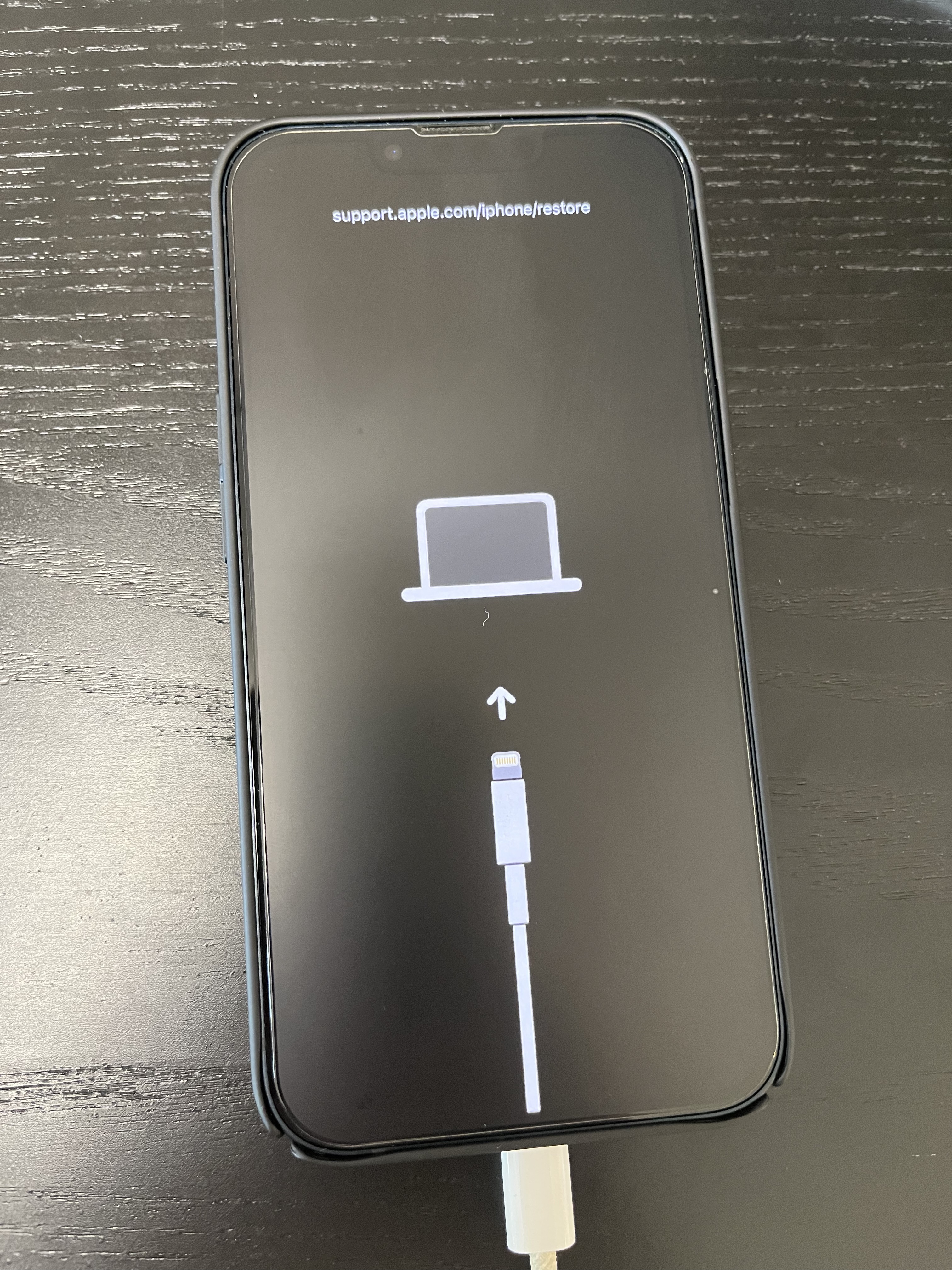
- Continue holding even after the Apple logo appears, until the Recovery Mode screen (showing a computer icon and cable) is displayed.
The iPhone screen will look like this:
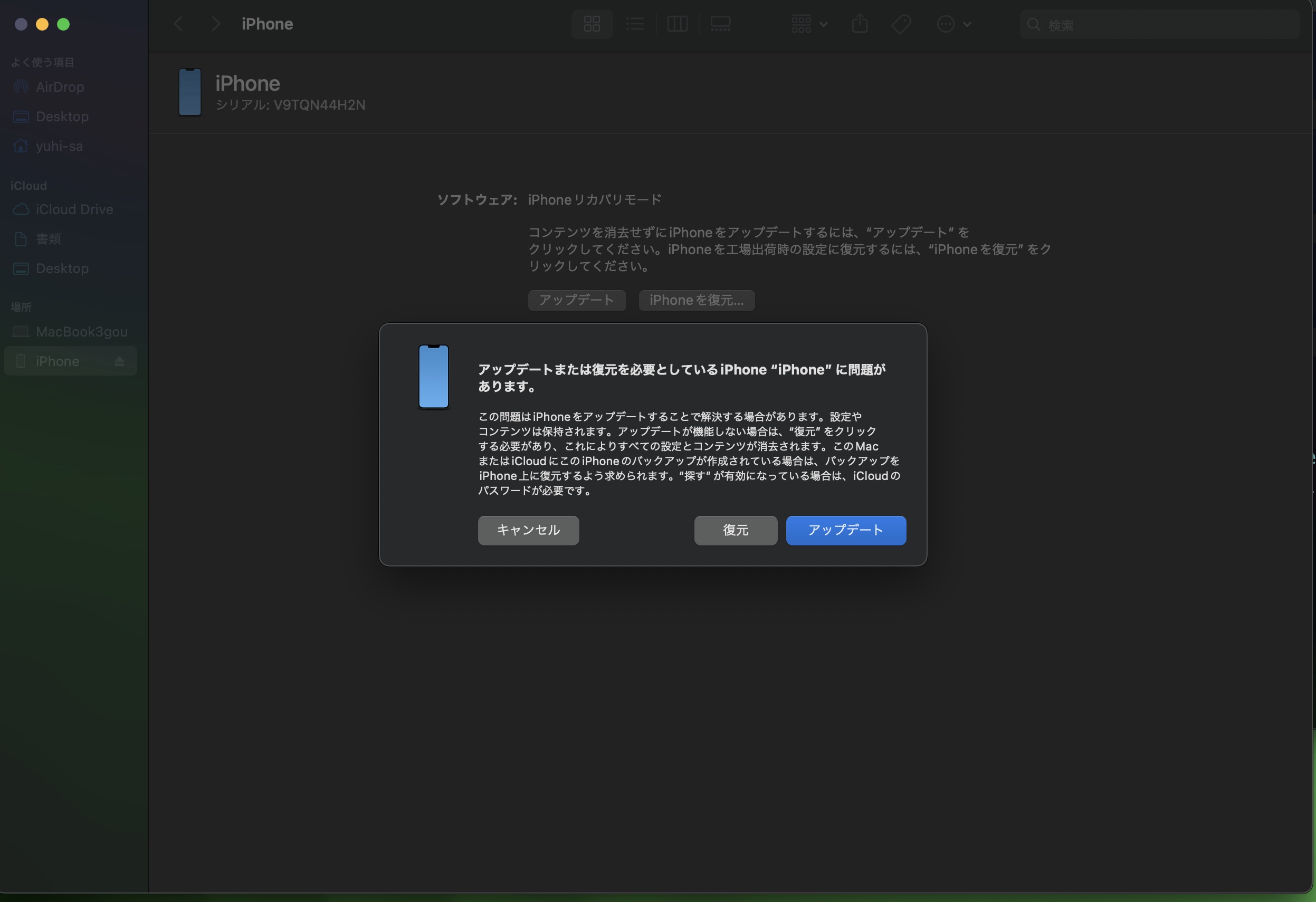
The Mac’s Finder (or iTunes on macOS Catalina or earlier) will display the following screen:
3. Restore Your iPhone from Mac
On the screen displayed in Mac’s Finder (or iTunes), select “Restore.”
- Selecting “Restore” will reset your iPhone to factory settings and install the latest stable iOS version (in this case, iOS 16).
- This process may take some time. Do not disconnect the cable or turn off your Mac during the process.
4. Initial iPhone Setup
Once the restore is complete, your iPhone will be in factory settings. You will need to go through the standard iPhone initial setup (language, region, Wi-Fi settings, etc.) from the beginning.
Important: iCloud or computer backups created on iOS 17 Beta are not compatible with iOS 16 and cannot be restored. If you have a backup from iOS 16 or earlier before the downgrade, you can restore some data from that backup. However, data added or changed on iOS 17 Beta will be lost.