This shell script converts all Excel files (.xlsx format) in a specified directory to CSV files and saves them in a separate directory. It uses Python’s xlsx2csv library for the conversion.
Prerequisites
1. Python Installation
Ensure that Python is installed on your system.
2. Installing the xlsx2csv Library
xlsx2csv is a Python library for converting Excel files to CSV. Install it with the following command:
pip install xlsx2csv
Shell Script
Save the following content as a .sh file (e.g., excel_to_csv.sh).
#!/bin/bash

# Directory containing the Excel files to convert
# Example: Target Excel files on the Desktop
input_dir="${HOME}/Desktop"

# Directory to save the converted CSV files
# Example: Create a csv_output directory on the Desktop
output_dir="${HOME}/Desktop/csv_output"

# Create the output directory if it doesn't exist
mkdir -p "${output_dir}"

# Function to convert an Excel file to CSV
# Argument: $1 - Full path to the input Excel file
convert_excel_to_csv() {
    local input_file="$1"
    # Generate the output file name (remove the extension from the original file name and add .csv)
    local output_file="${output_dir}/$(basename "${input_file%.*}").csv"

    echo "Converting '${input_file}' to '${output_file}'..."

    # Execute conversion using python3 -m xlsx2csv
    # The -m option means executing the module as a script
    python3 -m xlsx2csv "${input_file}" "${output_file}"

    if [ $? -eq 0 ]; then # If the exit status of the previous command is 0, it succeeded
        echo "Conversion successful: '${output_file}'"
    else
        echo "Conversion failed for: '${input_file}'" >&2 # Error messages go to stderr
    fi
}

# Loop through all .xlsx files in the specified directory
# for ... in ...; do ... done syntax
for excel_file in "${input_dir}"/*.xlsx; do
    # Check if the file exists (prevents the loop from running once when no files match)
    if [ -f "${excel_file}" ]; then
        convert_excel_to_csv "${excel_file}"
    fi
done

echo "All Excel files processed."
How to Run the Script
- Save the above script as a file named
excel_to_csv.shor similar. - Grant execute permission to the script.
chmod +x excel_to_csv.sh - Run the script.
./excel_to_csv.sh
Script Explanation
#!/bin/bash: Specifies that this script should be executed with the Bash shell.input_dir,output_dir: Define the source and destination directory paths.${HOME}represents the user’s home directory.mkdir -p "${output_dir}": Creates the directory for the converted CSV files if it doesn’t exist. The-poption creates parent directories as needed and doesn’t error if the directory already exists.convert_excel_to_csv()function:local: Indicates that variables defined within the function are local variables.basename "${input_file%.*}": Removes the path and extension from the file name.python3 -m xlsx2csv "${input_file}" "${output_file}": Executes thexlsx2csvmodule to convert the Excel file to CSV.if [ $? -eq 0 ]: Checks whether the exit status$?of the previous command is 0 (success).
for excel_file in "${input_dir}"/*.xlsx; do ... done: Loops through all files with the.xlsxextension ininput_dir.if [ -f "${excel_file}" ]; then ... fi: Checks whether what was found in the loop is actually a file. This prevents the loop from executing once when no files match*.xlsx.
This script is useful for batch converting Excel files to CSV.
Benchmark: How Expensive Is Spawning an External Command?
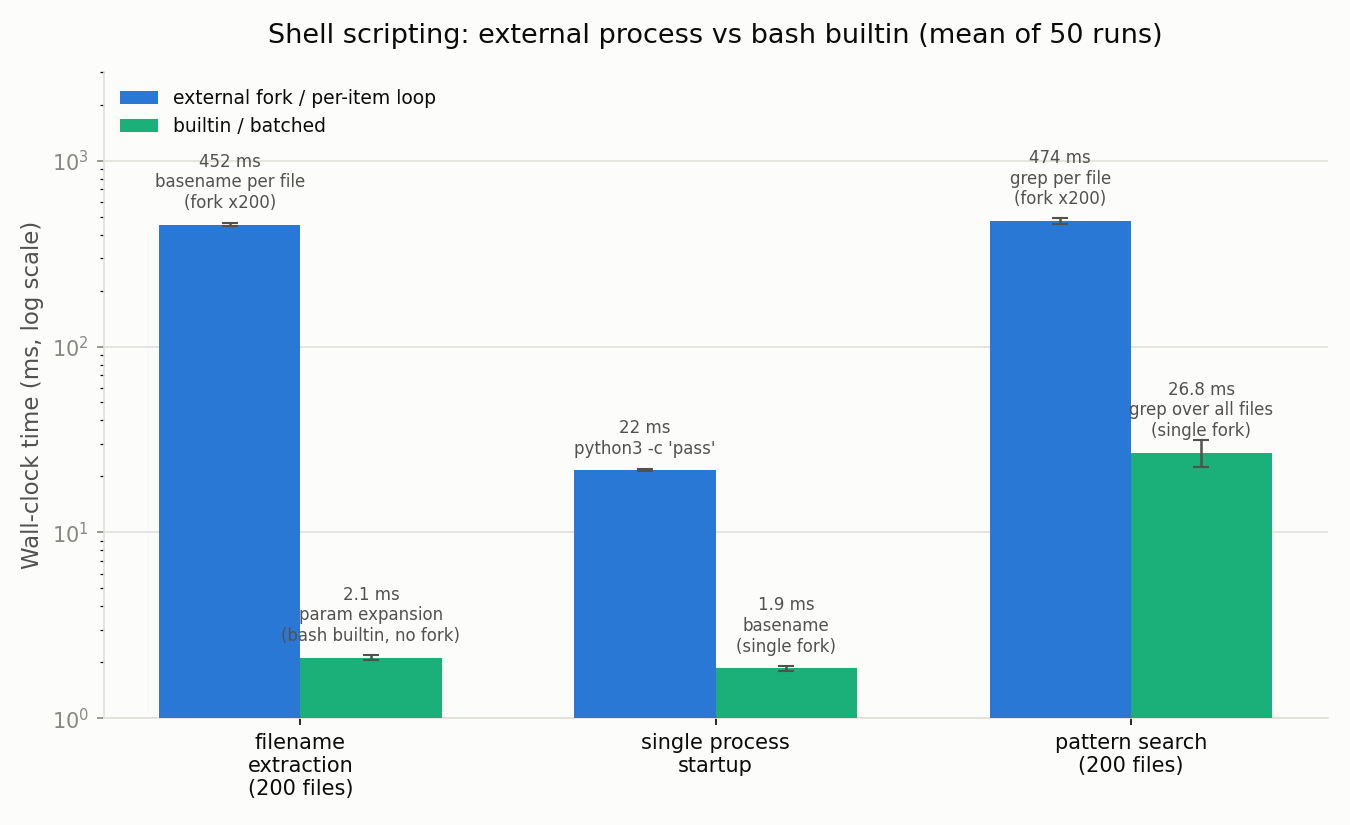
The script above calls basename "${input_file%.*}" for every file, and also launches an external python3 -m xlsx2csv process per file. Calling an external command once per loop iteration is easy to write, but the cost adds up as the file count grows. I measured three concrete comparisons to see exactly how much.
Environment: macOS (Apple Silicon), GNU bash 5.3.15. Each pattern was run 50 times; mean and standard deviation were measured with bash’s microsecond-precision $EPOCHREALTIME.
1. Extracting the filename/extension (looping over 200 files)
The script already strips the extension with the bash builtin ${input_file%.*}, but it still forks the external basename command once per file to strip the directory path. I compared that against rewriting the same logic with pure bash parameter expansion (${var##*/}), which never forks a process.
# Method A: fork the external basename command every iteration (the original script)
for f in "${FILES[@]}"; do
  out="$(basename "${f%.*}").csv"
done

# Method B: bash builtin parameter expansion only (no fork)
for f in "${FILES[@]}"; do
  name="${f##*/}"
  out="${name%.*}.csv"
done
| Method | Mean | Stddev |
|---|---|---|
A: fork basename 200 times | 452.4 ms | 10.0 ms |
| B: bash builtin expansion only | 2.1 ms | 0.06 ms |
That’s roughly a 215x difference over 200 iterations. Normalized per call, a single basename fork costs about 2.3 ms (452.4 ms / 200), which lines up closely with the single-invocation measurement below (1.9 ms) — confirming that most of the cost is pure process-startup overhead.
2. Comparing raw process-startup cost
To see how much a single fork+exec actually costs, I ran python3 and basename once each and compared them directly.
| Command | Mean | Stddev |
|---|---|---|
python3 -c 'pass' (single run) | 21.7 ms | 0.32 ms |
basename foo.xlsx (single run) | 1.9 ms | 0.06 ms |
The script’s real per-file cost — launching python3 -m xlsx2csv for each .xlsx file — pays roughly 22 ms just for the Python interpreter to start. In other words, the bottleneck of this script isn’t how basename is called; it’s the unavoidable per-file Python startup cost. For hundreds or thousands of files, restructuring the conversion so a single Python process loops over all files internally would matter far more than any shell-side micro-optimization.
3. Per-file loop vs a single batched call
As a more general example, I compared calling the same external command once per file in a loop against passing all files to it in a single call — searching 200 log files for a pattern.
# Method E: call grep once per file inside a for loop (200 forks)
for f in "${LOGFILES[@]}"; do
  if grep -q "failed" "$f"; then
    count=$((count + 1))
  fi
done

# Method F: pass all files to a single grep call
count=$(grep -l "failed" "${LOGFILES[@]}" | wc -l)
| Method | Mean | Stddev |
|---|---|---|
E: fork grep once per file (200 forks) | 473.5 ms | 17.6 ms |
F: single batched grep call over all files | 26.8 ms | 4.4 ms |
Roughly an 18x difference again. Commands like grep, sed, and awk already accept multiple file arguments, so passing them a batch (an array, a glob) beats calling them once per file in a loop — and it’s fewer lines of script, too.
Takeaways
- For stripping a path down to a filename, bash’s builtin parameter expansion (
${var##*/},${var%.*}) is over 200x faster than forking the externalbasenamecommand, and it removes a dependency too. - That said, in a script like this one that launches
python3 -m xlsx2csvonce per file, the Python interpreter’s startup cost (~22 ms per call) dominates, so replacing the shell-sidebasenamecall barely moves total runtime. Find the actual bottleneck before optimizing. - Commands like
grep,sed, andawkthat natively accept multiple files are much faster when called once with a batch of files than once per file in a loop (about 18x faster in this example). It’s worth checking whether a file list can be passed in one shot before reaching for a for loop.
Frequently Asked Questions (FAQ)
Q. Can this script convert older .xls files too?
No. The script filters target files with the loop condition for excel_file in "${input_dir}"/*.xlsx; do ... done, so only files with the .xlsx extension are picked up. .xls files (the Excel 97-2003 format) don’t match this glob and are skipped. To handle .xls as well, you’d need to change the loop condition or the extension check.
Q. If one file fails to convert, does the whole script stop?
No, it keeps going. Inside the convert_excel_to_csv() function, the exit status of python3 -m xlsx2csv is checked with if [ $? -eq 0 ]; on failure it just prints "Conversion failed for: '${input_file}'" to stderr, and the for loop moves on to the next file. You can see which files failed by checking the output printed while the script runs.
Q. Why does processing get slower as the number of files grows?
As measured in the benchmark section above, this script launches a separate python3 -m xlsx2csv process for every Excel file, and just starting the Python interpreter costs roughly 22 ms per call. With hundreds or thousands of files, that startup cost accumulates and dominates total runtime. A micro-optimization like replacing the basename call with a bash builtin expansion won’t move the needle much — reducing how many times an external process gets launched in the first place, for example by looping over all files inside a single Python process, has far more impact.