Introduction
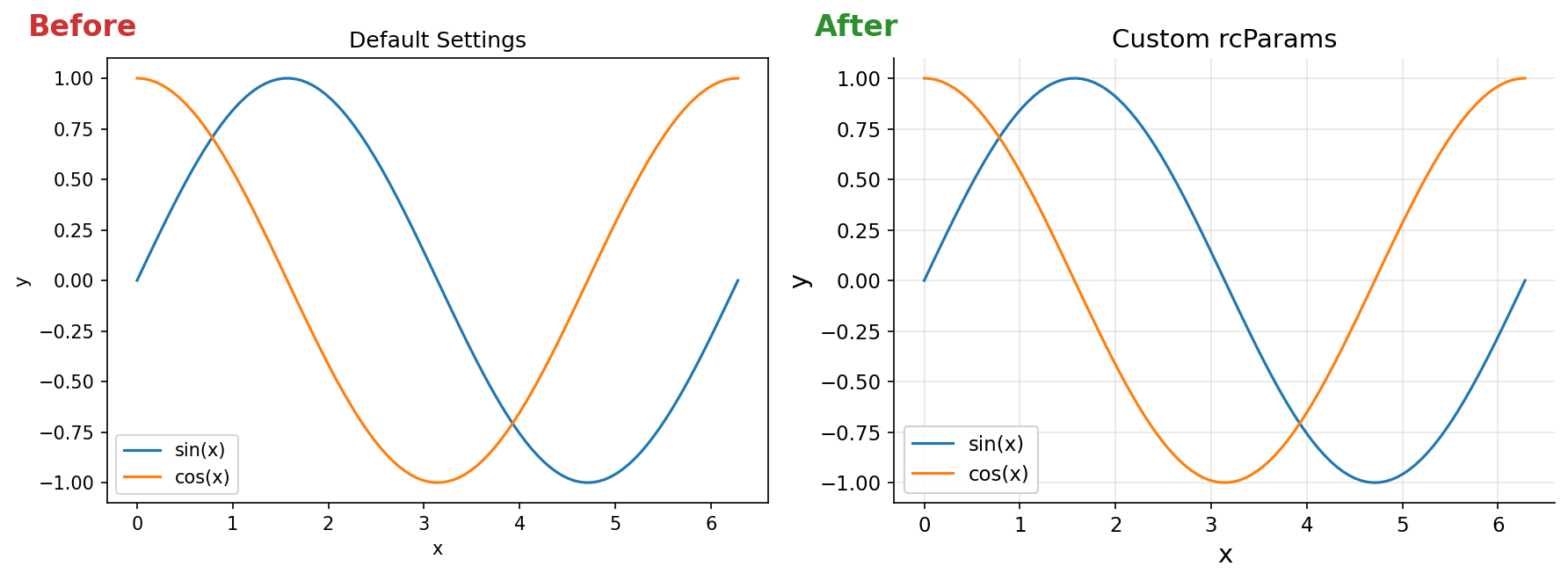
Matplotlib’s default settings produce figures that are often unsuitable for publications or presentations. Font sizes are too small, lines are too thin, and the overall appearance lacks polish. With a few configuration changes, you can produce figures that are ready for direct inclusion in papers.
This article covers practical tips for creating publication-quality figures with Matplotlib.
Global Configuration with rcParams
plt.rcParams lets you set default styles for your entire script, eliminating the need to configure each figure individually. Here is a template you can copy into your projects.
import matplotlib.pyplot as plt

plt.rcParams.update({
    'font.size': 12,
    'axes.labelsize': 14,
    'axes.titlesize': 14,
    'xtick.labelsize': 11,
    'ytick.labelsize': 11,
    'legend.fontsize': 11,
    'figure.figsize': (6, 4),
    'figure.dpi': 150,
    'lines.linewidth': 1.5,
    'axes.linewidth': 0.8,
    'axes.grid': True,
    'grid.alpha': 0.3,
})
Parameter Breakdown
font.size: Base font size. Other size parameters scale relative to this value.axes.labelsize,axes.titlesize: Axis label and title size. Setting these slightly larger than the base size improves readability.figure.figsize: Default figure dimensions in inches. Adjust to match your journal’s column width.figure.dpi: Resolution. 150 or higher ensures crisp display in notebooks.axes.grid,grid.alpha: A subtle grid helps readers extract data values from the plot.
Combining with Style Sheets
Matplotlib includes preset style sheets. When combining them with rcParams, apply the style sheet first, then override individual settings.
plt.style.use('seaborn-v0_8-whitegrid')
plt.rcParams.update({
    'font.size': 12,
    'axes.labelsize': 14,
})
Font Configuration
macOS
On macOS, system fonts like Hiragino Sans are available. You can register them manually for non-ASCII text support.
import matplotlib
from matplotlib import font_manager

font_path = '/System/Library/Fonts/Helvetica.ttc'
font_manager.fontManager.addfont(font_path)
matplotlib.rc('font', family='Helvetica')
For Japanese text on macOS, the japanize-matplotlib package is the simplest solution.
pip install japanize-matplotlib
import japanize_matplotlib
Linux
On Linux, install your preferred fonts and configure the path.
# List available fonts
fc-list

# Install Noto Sans (Ubuntu/Debian)
sudo apt install fonts-noto-cjk
Then register the font in Matplotlib.
import matplotlib
from matplotlib import font_manager

font_path = '/usr/share/fonts/opentype/noto/NotoSansCJK-Regular.ttc'
font_manager.fontManager.addfont(font_path)
matplotlib.rc('font', family='Noto Sans CJK JP')
If fonts are not recognized after installation, clear the font cache.
matplotlib.font_manager._load_fontmanager(try_read_cache=False)
Colormap Selection
Why Avoid jet and rainbow
The jet and rainbow colormaps are problematic for two reasons. First, they are not perceptually uniform – brightness varies inconsistently, which can misrepresent data magnitude. Second, they are difficult to interpret for readers with color vision deficiencies.
Recommended Colormaps
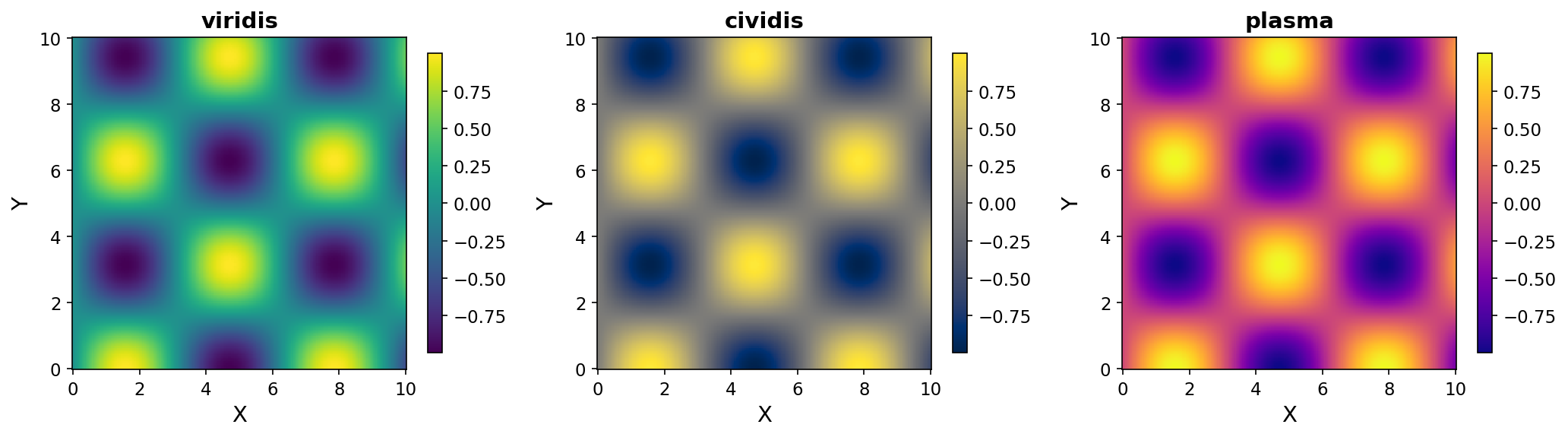
For continuous data, use one of these perceptually uniform colormaps.
- viridis: The default colormap. Perceptually uniform and accessible.
- cividis: Similar to viridis but specifically optimized for color vision deficiency accessibility.
- plasma: A warm-toned alternative. Useful for distinguishing from viridis when presenting multiple heatmaps.
import numpy as np
import matplotlib.pyplot as plt

x = np.linspace(0, 10, 100)
y = np.linspace(0, 10, 100)
X, Y = np.meshgrid(x, y)
Z = np.sin(X) * np.cos(Y)

fig, axes = plt.subplots(1, 3, figsize=(15, 4))
cmaps = ['viridis', 'cividis', 'plasma']

for ax, cmap in zip(axes, cmaps):
    im = ax.pcolormesh(X, Y, Z, cmap=cmap)
    ax.set_title(cmap)
    fig.colorbar(im, ax=ax)

plt.tight_layout()
plt.show()
Qualitative Palettes for Categorical Data
When plotting multiple series in line charts or bar charts, use qualitative palettes where each color is visually distinct.
# tab10: up to 10 distinct colors
colors = plt.cm.tab10.colors

for i in range(5):
    plt.plot(x, np.sin(x + i), color=colors[i], label=f'Series {i+1}')

plt.legend()
plt.show()
Set2 and Dark2 are also good choices for publications due to their muted, professional tones.
Subplot Alignment and Shared Axes
Basic Subplots with Shared Axes
fig, axes = plt.subplots(2, 2, figsize=(10, 8), sharex=True, sharey=True)

for ax in axes.flat:
    ax.plot(np.random.randn(50).cumsum())

fig.align_ylabels(axes[:, 0])
plt.tight_layout()
plt.show()
Setting sharex=True and sharey=True unifies axis ranges across all subplots. fig.align_ylabels() ensures y-axis labels are vertically aligned.
Fine-Tuning Layout with gridspec_kw
To control spacing between subplots, use gridspec_kw.
fig, axes = plt.subplots(
    2, 2,
    figsize=(10, 8),
    gridspec_kw={'hspace': 0.05, 'wspace': 0.05},
    sharex=True,
    sharey=True
)
Subplots with Different Sizes
GridSpec allows you to define subplots of varying sizes within a single figure.
from matplotlib.gridspec import GridSpec

fig = plt.figure(figsize=(10, 6))
gs = GridSpec(2, 3, figure=fig)

ax_main = fig.add_subplot(gs[:, :2])   # Large plot spanning left 2/3
ax_top = fig.add_subplot(gs[0, 2])     # Top right
ax_bottom = fig.add_subplot(gs[1, 2])  # Bottom right
Vector Output (PDF/SVG)
Saving in Vector Format
For paper submissions, vector formats (PDF, SVG) are preferred because they scale without quality loss.
fig, ax = plt.subplots()
ax.plot([1, 2, 3], [1, 4, 9])

# PDF output
fig.savefig('figure.pdf', bbox_inches='tight')

# SVG output
fig.savefig('figure.svg', bbox_inches='tight')
bbox_inches='tight' automatically trims excess whitespace around the figure.
When to Use Raster Format
Raster format (PNG) is more appropriate in certain cases:
- Scatter plots with a very large number of points (tens of thousands or more)
- Heatmaps and image plots
- When file size needs to be minimized
For raster output, specify the dpi parameter.
fig.savefig('figure.png', dpi=300, bbox_inches='tight')
Mixing Vector and Raster in One Figure
You can selectively rasterize heavy elements within a vector figure. Elements with rasterized=True are rendered as bitmaps, while the rest remains vector.
ax.scatter(x, y, rasterized=True)  # Only the scatter plot is rasterized
fig.savefig('figure.pdf', dpi=300, bbox_inches='tight')
Complete Example: Combining All Tips
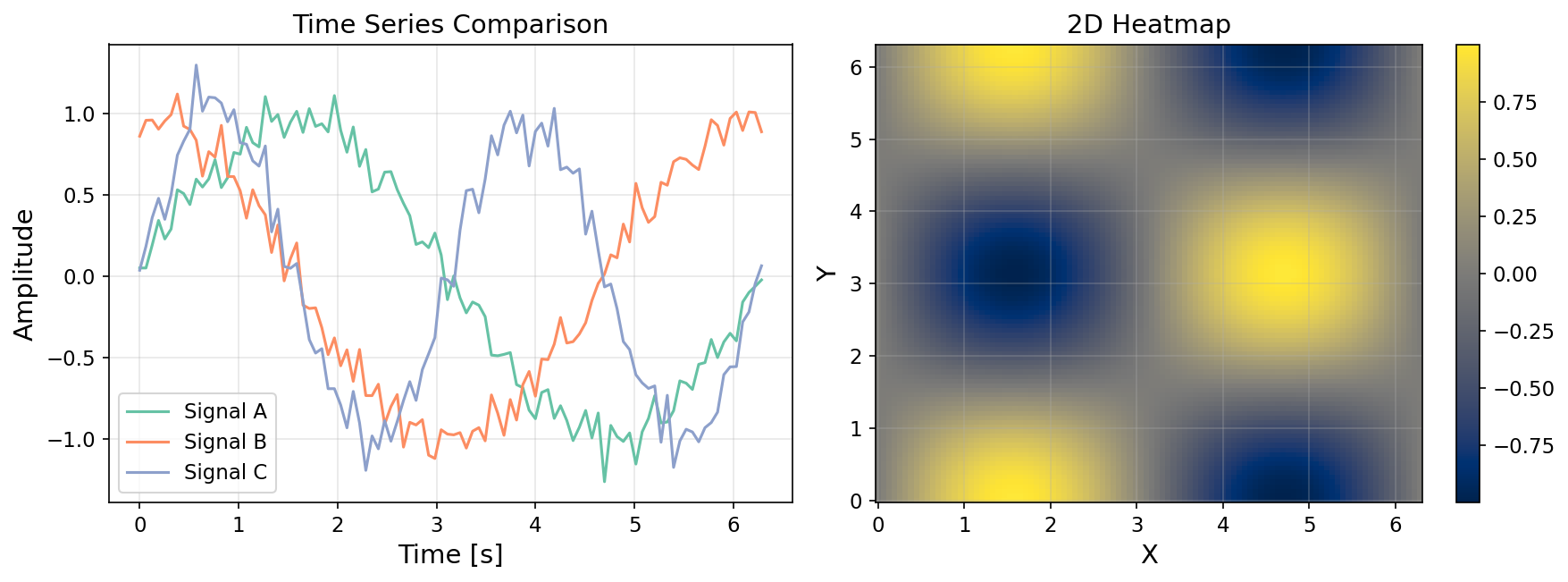
Here is a full example that brings together all the tips covered in this article.
import numpy as np
import matplotlib.pyplot as plt

# Global configuration
plt.rcParams.update({
    'font.size': 12,
    'axes.labelsize': 14,
    'axes.titlesize': 14,
    'xtick.labelsize': 11,
    'ytick.labelsize': 11,
    'legend.fontsize': 11,
    'figure.figsize': (6, 4),
    'figure.dpi': 150,
    'lines.linewidth': 1.5,
    'axes.linewidth': 0.8,
    'axes.grid': True,
    'grid.alpha': 0.3,
})

# Generate sample data
np.random.seed(42)
x = np.linspace(0, 2 * np.pi, 100)
signals = {
    'Signal A': np.sin(x) + np.random.normal(0, 0.1, 100),
    'Signal B': np.cos(x) + np.random.normal(0, 0.1, 100),
    'Signal C': np.sin(2 * x) + np.random.normal(0, 0.1, 100),
}

# Qualitative palette for categorical data
colors = plt.cm.Set2.colors

# Create subplots
fig, axes = plt.subplots(1, 2, figsize=(12, 4.5))

# Left: Line chart
ax = axes[0]
for i, (label, data) in enumerate(signals.items()):
    ax.plot(x, data, color=colors[i], label=label)
ax.set_xlabel('Time [s]')
ax.set_ylabel('Amplitude')
ax.set_title('Time Series Comparison')
ax.legend()

# Right: Heatmap
ax = axes[1]
X, Y = np.meshgrid(x, x)
Z = np.sin(X) * np.cos(Y)
im = ax.pcolormesh(X, Y, Z, cmap='cividis', rasterized=True)
ax.set_xlabel('X')
ax.set_ylabel('Y')
ax.set_title('2D Heatmap')
fig.colorbar(im, ax=ax)

plt.tight_layout()

# Save in vector format
fig.savefig('publication_figure.pdf', bbox_inches='tight')
fig.savefig('publication_figure.svg', bbox_inches='tight')
plt.show()
Summary
Key takeaways for creating publication-quality figures:
- Define global settings with
rcParamsto maintain consistent styling across all figures - Configure fonts explicitly to ensure correct rendering on all platforms
- Choose perceptually uniform colormaps like
viridisfor accessibility - Use
sharex/shareyandalign_ylabelsto keep subplots aligned - Save final output in PDF or SVG vector format for lossless scaling
For an introduction to Matplotlib basics and creating 3D animations (GIF), see also Creating 3D Animations with Matplotlib.
Related Articles
- Fast Fourier Transform (FFT): Theory and Python Implementation - Contains spectrum graph visualization examples.
- Moving Average Filters Compared: SMA, WMA, and EMA in Python - Contains filter comparison graph examples.
- Building a Progress Bar in Python from Scratch - Practical Python tips.
- Python Decorators: Mechanics and Practical Patterns - Practical Python tips on decorator patterns.