Introduction
Manually installing and configuring middleware like MySQL, Redis, and object storage for local development often leads to environment inconsistencies and version management issues. Docker Compose lets you spin up a reproducible development environment instantly with a single docker compose up command.
This article explains how to build a practical development environment with MySQL, Redis, and MinIO (S3-compatible object storage) using Docker Compose.
Overall Architecture
The development environment built in this article has an application container (app) that depends on three pieces of middleware: MySQL, Redis, and MinIO.
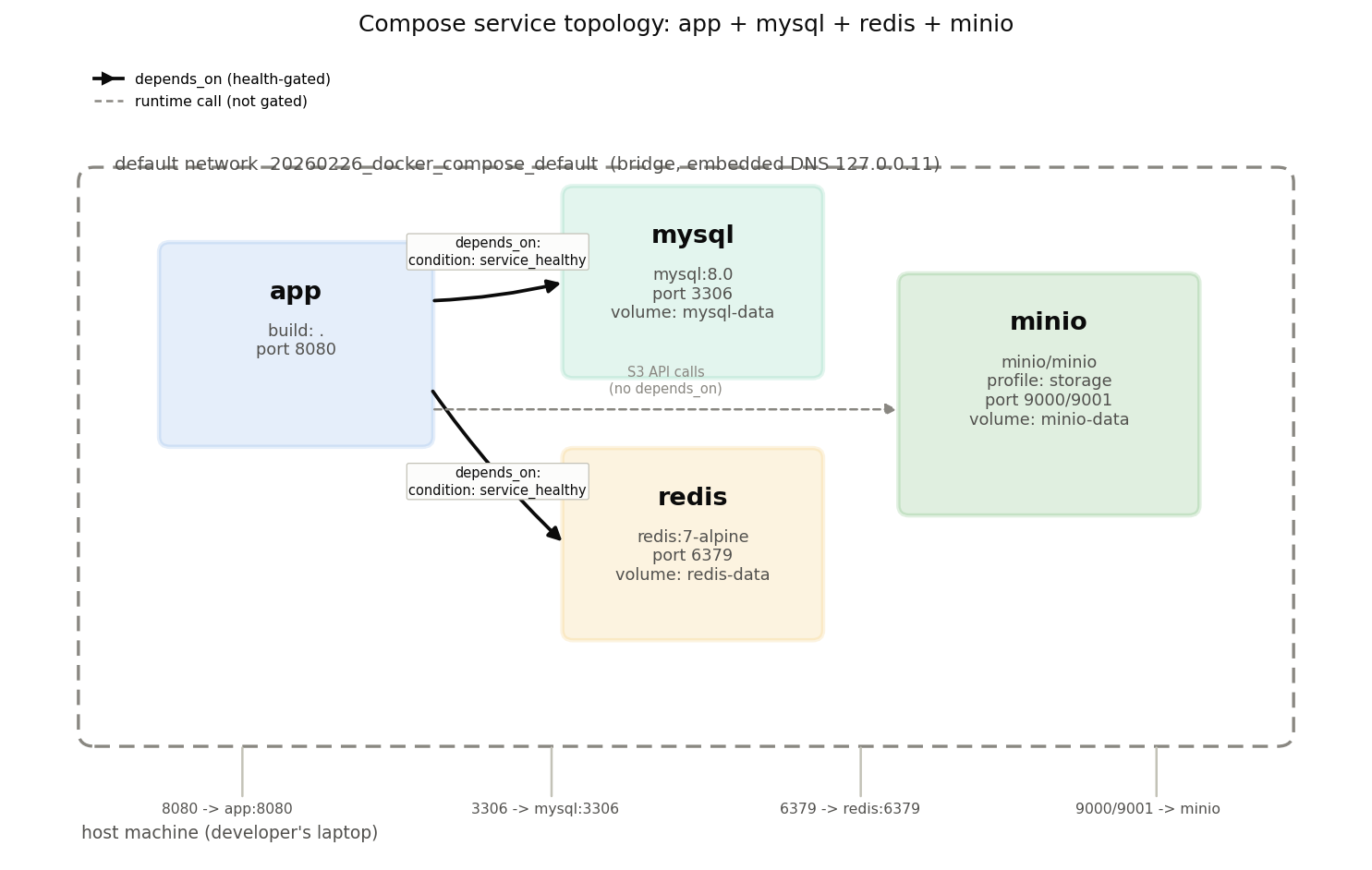
All services sit on a single default network that Compose automatically creates per project (<project-name>_default), and containers resolve each other by service name (details in the “Networking” section below). app waits for mysql and redis to pass their depends_on health-check gate before starting, but minio is an optional service isolated behind profiles: ["storage"] — it is not part of the startup-order control and is simply called as an S3 API at runtime. Each piece of middleware is backed by a Named Volume, so data survives docker compose down (unless -v is passed). The following sections walk through each element in this diagram in turn: dependency resolution order, service discovery, and data persistence.
Basic docker-compose.yml Structure
A Docker Compose configuration file consists of three main sections:
services: # Container definitions
  web:
    image: nginx
    ports:
      - "8080:80"

volumes: # Volumes for data persistence
  db-data:

networks: # Custom networks
  backend:
Service Configuration
MySQL
services:
  mysql:
    image: mysql:8.0
    container_name: dev-mysql
    environment:
      MYSQL_ROOT_PASSWORD: ${MYSQL_ROOT_PASSWORD:-rootpass}
      MYSQL_DATABASE: ${MYSQL_DATABASE:-devdb}
      MYSQL_USER: ${MYSQL_USER:-devuser}
      MYSQL_PASSWORD: ${MYSQL_PASSWORD:-devpass}
    ports:
      - "3306:3306"
    volumes:
      - mysql-data:/var/lib/mysql
    healthcheck:
      test: ["CMD", "mysqladmin", "ping", "-h", "localhost"]
      interval: 10s
      timeout: 5s
      retries: 5
      start_period: 30s
    command: >
      --character-set-server=utf8mb4
      --collation-server=utf8mb4_unicode_ci
      --default-time-zone=+09:00
Setting default-time-zone=+09:00 enables JST-based datetime management.
Redis
redis:
  image: redis:7-alpine
  container_name: dev-redis
  ports:
    - "6379:6379"
  volumes:
    - redis-data:/data
  healthcheck:
    test: ["CMD", "redis-cli", "ping"]
    interval: 10s
    timeout: 5s
    retries: 5
  command: redis-server --appendonly yes
--appendonly yes enables AOF (Append Only File) persistence for data durability.
MinIO (S3-Compatible Storage)
minio:
  image: minio/minio:latest
  container_name: dev-minio
  environment:
    MINIO_ROOT_USER: ${MINIO_ROOT_USER:-minioadmin}
    MINIO_ROOT_PASSWORD: ${MINIO_ROOT_PASSWORD:-minioadmin}
  ports:
    - "9000:9000" # API
    - "9001:9001" # Console
  volumes:
    - minio-data:/data
  healthcheck:
    test: ["CMD", "mc", "ready", "local"]
    interval: 10s
    timeout: 5s
    retries: 5
  command: server /data --console-address ":9001"
MinIO provides an AWS S3-compatible API, making it ideal for local development of applications that use S3 in production.
Complete docker-compose.yml
services:
  mysql:
    image: mysql:8.0
    container_name: dev-mysql
    environment:
      MYSQL_ROOT_PASSWORD: ${MYSQL_ROOT_PASSWORD:-rootpass}
      MYSQL_DATABASE: ${MYSQL_DATABASE:-devdb}
      MYSQL_USER: ${MYSQL_USER:-devuser}
      MYSQL_PASSWORD: ${MYSQL_PASSWORD:-devpass}
    ports:
      - "3306:3306"
    volumes:
      - mysql-data:/var/lib/mysql
    healthcheck:
      test: ["CMD", "mysqladmin", "ping", "-h", "localhost"]
      interval: 10s
      timeout: 5s
      retries: 5
      start_period: 30s
    command: >
      --character-set-server=utf8mb4
      --collation-server=utf8mb4_unicode_ci
      --default-time-zone=+09:00

  redis:
    image: redis:7-alpine
    container_name: dev-redis
    ports:
      - "6379:6379"
    volumes:
      - redis-data:/data
    healthcheck:
      test: ["CMD", "redis-cli", "ping"]
      interval: 10s
      timeout: 5s
      retries: 5
    command: redis-server --appendonly yes

  minio:
    image: minio/minio:latest
    container_name: dev-minio
    environment:
      MINIO_ROOT_USER: ${MINIO_ROOT_USER:-minioadmin}
      MINIO_ROOT_PASSWORD: ${MINIO_ROOT_PASSWORD:-minioadmin}
    ports:
      - "9000:9000"
      - "9001:9001"
    volumes:
      - minio-data:/data
    healthcheck:
      test: ["CMD", "mc", "ready", "local"]
      interval: 10s
      timeout: 5s
      retries: 5
    command: server /data --console-address ":9001"

volumes:
  mysql-data:
  redis-data:
  minio-data:
Common Commands
| Command | Description |
|---|---|
docker compose up -d | Start in background |
docker compose down | Stop and remove containers |
docker compose down -v | Stop and remove volumes too |
docker compose logs -f mysql | Follow MySQL logs |
docker compose exec mysql mysql -u devuser -p devdb | Connect to MySQL |
docker compose exec redis redis-cli | Connect to Redis CLI |
docker compose ps | Check container status |
docker compose restart redis | Restart specific service |
Data Persistence
Named Volumes vs Bind Mounts
| Type | Use Case | Example |
|---|---|---|
| Named Volume | DB data persistence | mysql-data:/var/lib/mysql |
| Bind Mount | Source code sync | ./src:/app/src |
Named Volumes persist after docker compose down, but are deleted with the -v flag.
Lifecycle: down vs. down -v
Let’s trace the life and death of data in a Named Volume through an illustrative command sequence (expected behavior per Docker’s documented volume semantics, not a captured transcript from a running daemon).
docker compose up -d mysql          # First start: mysql-data volume is created and initialized
docker compose exec mysql mysql -u devuser -p devdb -e \
  "CREATE TABLE t (id INT); INSERT INTO t VALUES (1);"

docker compose down                 # Container and network are removed, but mysql-data remains
docker compose up -d mysql          # Reattaches the same mysql-data
docker compose exec mysql mysql -u devuser -p devdb -e "SELECT * FROM t;"
# => returns 1. Data was not lost.

docker compose down -v              # -v also removes the Named Volume
docker compose up -d mysql          # mysql-data is recreated from scratch; MySQL reinitializes
docker compose exec mysql mysql -u devuser -p devdb -e "SELECT * FROM t;"
# => ERROR 1146: Table 'devdb.t' doesn't exist (reinitialized from a clean state)
docker compose down removes containers, the network, and any anonymous volumes declared inline in the Compose file, but it does not remove Named Volumes declared under volumes: unless you explicitly pass -v. Reusing a script or alias that always includes -v in a CI pipeline can accidentally wipe out a local development database’s contents, so avoid hard-coding down -v into shared scripts or aliases.
Bind Mount Caveats
Bind mounts are convenient for syncing source code and improving developer experience, but they introduce specific pitfalls when used for stateful services like databases:
- UID/GID mismatches causing permission errors: Many official database images own their data directory as a dedicated in-container user (e.g., MySQL runs as the
mysqluser, typically around UID 999). Bind-mounting a host directory directly can leave the host user’s UID/GID mismatched against the in-container user, causingPermission deniederrors during initialization. A Named Volume avoids this because Docker itself initializes the volume’s ownership to match the in-container user. - I/O performance degradation on Docker Desktop (macOS/Windows): Docker Desktop shares the host filesystem with containers through a VM, so heavy, fine-grained I/O against a bind-mounted directory (exactly the pattern of database file I/O) is noticeably slower than a Named Volume, which stays entirely inside the VM. File-sharing implementations have improved across generations (the move from gRPC-FUSE to VirtioFS, for example) and perceived speed has improved substantially, but even 2025-era benchmarks report bind mounts running roughly 3x slower than native I/O ( Docker on MacOS is still slow? ). On Linux, where Docker Engine uses the host filesystem directly, this problem does not arise.
The practical guideline that follows: always use a Named Volume for database data files, and reserve bind mounts for syncing source code and configuration files.
Health Checks and depends_on
Dependency resolution order: “started” is not “ready”
Docker Compose builds a DAG (directed acyclic graph) from the dependencies declared in depends_on and starts dependency services first, in topological order. However, when depends_on is written as a plain list (or the condition is omitted), the default condition is service_started.
services:
  app:
    build: .
    depends_on:
      - mysql # omitting condition is equivalent to service_started
      - redis
All service_started guarantees is that “the dependency container’s entrypoint process (PID 1) has been exec’d” — it says nothing about whether that process is actually ready to accept connections. Take MySQL as an example: between mysqld starting and it actually LISTENing on port 3306, several internal steps happen:
- Checking whether the data directory exists (on first run, a full initialization sequence)
- Initializing the InnoDB buffer pool and redo log
- Loading the privilege tables and binding the network socket
Especially on first startup (with an empty volume), the official MySQL image’s entrypoint script performs a two-phase startup: it first launches a temporary internal server for initialization, stops it, and only then starts the real server process. During this window, the container itself already shows as “Up,” yet connections to port 3306 cannot yet be established. So if condition is omitted (or left at service_started), the app container will attempt a connection right after the MySQL container starts, and can fail with something like Connection refused or Can't connect to MySQL server. This is the classic Docker Compose startup-order race condition.
service_healthy: gating on the health check
condition: service_healthy solves this problem:
services:
  app:
    build: .
    depends_on:
      mysql:
        condition: service_healthy
      redis:
        condition: service_healthy
With service_healthy, Compose holds back the dependent service’s startup until the dependency’s container status transitions from starting to healthy. This state transition is governed by four healthcheck parameters:
| Parameter | Meaning |
|---|---|
test | The command used to judge health. Exit code 0 means success, anything else means failure |
interval | How often the health check runs |
timeout | If a single check doesn’t complete within this time, it’s treated as a failure |
retries | This many consecutive failures flips the container status to unhealthy |
start_period | A grace period right after container startup; failures during this window don’t count toward retries (a mitigation so a slow-booting service isn’t prematurely marked unhealthy) |
In the MySQL example (mysqladmin ping), with interval: 10s, timeout: 5s, retries: 5, and start_period: 30s, failures in the first 30 seconds after startup aren’t counted, and only 5 consecutive failed checks (10 seconds apart) after that flip the status to unhealthy. A dependent service with condition: service_healthy waits for this state to become healthy, so it safely skips over the intermediate state where “the port is open but the service is still initializing.”
Note that service_healthy only guarantees startup order. If a dependency restarts and briefly goes unhealthy while everything is already running, Compose will not automatically stop or restart app. If you need that runtime guarantee, combine this with the Compose Spec’s depends_on.restart: true (which restarts the dependent service when its dependency restarts), or implement connection retry logic in the application itself.
Verification: naive config vs. health-check-gated config
Let’s compare the two configurations directly. The following are minimal three-service (app, mysql, redis) extracts (both are valid YAML, and both can have their variable interpolation and schema checked with docker compose config).
Naive version (startup order only, no health check):
services:
  app:
    build: .
    depends_on:
      - mysql
      - redis
    environment:
      DATABASE_URL: mysql://devuser:devpass@mysql:3306/devdb
      REDIS_URL: redis://redis:6379
  mysql:
    image: mysql:8.0
    environment:
      MYSQL_ROOT_PASSWORD: rootpass
      MYSQL_DATABASE: devdb
      MYSQL_USER: devuser
      MYSQL_PASSWORD: devpass
  redis:
    image: redis:7-alpine
Health-check-gated version:
services:
  app:
    build: .
    depends_on:
      mysql:
        condition: service_healthy
      redis:
        condition: service_healthy
    environment:
      DATABASE_URL: mysql://devuser:devpass@mysql:3306/devdb
      REDIS_URL: redis://redis:6379
  mysql:
    image: mysql:8.0
    environment:
      MYSQL_ROOT_PASSWORD: rootpass
      MYSQL_DATABASE: devdb
      MYSQL_USER: devuser
      MYSQL_PASSWORD: devpass
    healthcheck:
      test: ["CMD", "mysqladmin", "ping", "-h", "localhost"]
      interval: 10s
      timeout: 5s
      retries: 5
      start_period: 30s
  redis:
    image: redis:7-alpine
    healthcheck:
      test: ["CMD", "redis-cli", "ping"]
      interval: 10s
      timeout: 5s
      retries: 5
The only differences are the shape of depends_on (list vs. a map with condition) and the presence of healthcheck blocks on mysql and redis. The behavior of docker compose up differs as follows:
| Elapsed time | Naive version | Health-check-gated version |
|---|---|---|
| t=0s | mysql, redis, and app all begin container creation/startup nearly simultaneously | mysql and redis begin startup; app is not yet created |
| t=1s to a few seconds | MySQL’s internal initialization is still in progress; app may attempt a DB connection concurrently | Compose polls the health check within start_period |
| If the connection timing overlaps | app may fail at startup with ECONNREFUSED or similar (crashes if the app has no retry logic) | app hasn’t started yet, so no connection attempt occurs |
| Once MySQL becomes ready to accept connections | (If app already failed and exited, recovery depends on the restart policy) | app starts right after the health check flips to healthy, and the first connection succeeds |
This table summarizes generally observed behavior; the actual failure probability varies with host machine performance and image cache state (e.g., whether this is right after a fresh pull). The busier the CI environment or host, the longer MySQL’s initialization tends to take, making the race in the naive version more likely to surface. Just because it worked once locally doesn’t mean it will behave the same way in CI.
Networking: Service Discovery and the “localhost” Trap
The default bridge network and DNS-based name resolution
When docker-compose.yml does not define an explicit networks section, Compose automatically creates a bridge network named <project-name>_default per project and attaches every service to it. This network has a built-in DNS server listening on 127.0.0.11, and service names resolve directly as container hostnames. That is, from inside the app container, mysql, redis, and minio are each reachable simply by that name.
environment:
  DATABASE_URL: mysql://devuser:devpass@mysql:3306/devdb # hostname is "mysql"
  REDIS_URL: redis://redis:6379 # hostname is "redis"
Beyond not having to hard-code IP addresses, this has the practical benefit that name resolution by service name is unaffected even if a container is recreated and its IP address changes.
A common mistake: “localhost” inside a container refers to itself
The most frequent pitfall is specifying localhost (or 127.0.0.1) as the connection host.
# WRONG
environment:
  DATABASE_URL: mysql://devuser:devpass@localhost:3306/devdb
Each Docker container has its own independent network namespace. Writing localhost inside the app container refers to the app container’s own loopback interface — it never reaches the mysql container’s network namespace. Nothing is listening on port 3306 inside the app container (unless the app container itself happens to listen there), so the connection fails with Connection refused.
What makes this confusing is that accessing localhost:3306 from the host machine actually works. When a port is published with something like ports: ["3306:3306"], Docker (via docker-proxy or iptables DNAT) forwards traffic sent to the host’s localhost:3306 to the mysql container’s port 3306. In other words, there’s an asymmetry — “localhost works from the host, but not from inside a container” — and if you verify connectivity using a CLI tool on the host machine (e.g., mysql -h 127.0.0.1), the problem only surfaces once you set the same connection string on the application container.
Rule of thumb: always use the service name as the connection host for inter-container communication, and reserve localhost for inter-process communication within the same container.
Verifying name resolution
When in doubt, you can check name resolution directly from inside a running container.
docker compose exec app getent hosts mysql
# e.g.: 172.19.0.3      mysql

docker compose exec app ping -c 1 redis
If getent hosts <service-name> returns an IP address, DNS resolution itself is working. If you still can’t connect, suspect whether the target service is actually LISTENing on that port (i.e., whether its healthcheck has reached healthy).
Environment Variable Management
A .env file placed alongside docker-compose.yml is automatically loaded:
# .env
MYSQL_ROOT_PASSWORD=my_secure_password
MYSQL_DATABASE=myapp
MYSQL_USER=appuser
MYSQL_PASSWORD=app_secure_password
MINIO_ROOT_USER=minio_admin
MINIO_ROOT_PASSWORD=minio_secure_password
Add .env to .gitignore and include a .env.example (without values) in version control.
Improving Developer Experience: Docker Compose Watch (2024-2025 Changes)
Docker Compose introduced the docker compose watch command and develop.watch configuration in v2.22, released September 2023, and it matured into a production-ready feature through 2024-2025. It detects source code changes and either syncs files directly into a running container without recreating it, or rebuilds the image only when necessary.
services:
  app:
    build: .
    develop:
      watch:
        - action: sync # sync changed files straight into the container
          path: ./src
          target: /app/src
        - action: rebuild # rebuild the image when dependency files change
          path: ./package.json
        - action: sync+restart # sync and restart the process on config changes
          path: ./config
          target: /app/config
docker compose watch
action: sync copies host-side changes directly into the container rather than continuously sharing the filesystem the way a bind mount does — each change is handled as an explicit sync event. action: rebuild is for files like package.json that require rebuilding the image, and action: sync+restart suits cases where a config file change only needs the process restarted, not a rebuild. In September 2025, an initial_sync feature was added that immediately syncs all existing files when docker compose watch starts, reducing the chance of a state mismatch before watching begins (
Use Compose Watch
).
Tips
Selective Service Startup with Profiles
Not all services are always needed. Profiles enable selective startup:
services:
  minio:
    profiles: ["storage"]
    image: minio/minio:latest
    # ...
docker compose up -d                    # mysql, redis only
docker compose --profile storage up -d  # include minio
Volume Cleanup
Unused volumes accumulate and consume disk space:
docker volume ls                  # List volumes
docker volume prune               # Remove unused volumes
docker system df                  # Docker disk usage
Related Articles
- Dockerfile Basics: Layer Caching and Multi-Stage Builds - How to build the images Docker Compose actually runs (layer caching, multi-stage builds, non-root users).
- GitHub Actions Basics - Integrating Docker Compose environments into CI/CD pipelines.
- Transaction Isolation Levels and Data Inconsistencies - Detailed MySQL transaction isolation levels.
- Prisma and MySQL Timezone Mismatch - Timezone issues commonly encountered with MySQL on Docker.
References
- Docker Compose documentation
- Control startup and shutdown order in Compose
- Official guide to controlling startup order with
depends_onandhealthcheck. - Use Compose Watch
- Configuration reference for
develop.watch. - Announcing Docker Compose Watch GA Release - Official blog post on Compose Watch reaching general availability.
- Docker on MacOS is still slow? - Bind mount vs. Named Volume I/O performance comparison on Docker Desktop.
- MySQL Docker Hub
- Redis Docker Hub
- MinIO Docker Hub