What is a CSV File?
CSV (Comma-Separated Values) is a text-based file format that stores data separated by commas. It is widely used for data exchange and as input/output for data analysis. Python offers the built-in csv module as well as third-party libraries like pandas and polars, and choosing the right tool for your use case and data scale is important.
1. The Standard Library csv Module
1.1 csv.reader: Basic Reading
csv.reader reads a CSV file row by row as lists.
import csv

with open("data.csv", "r", encoding="utf-8") as f:
    reader = csv.reader(f)
    header = next(reader)  # Get the header row
    print(f"Columns: {header}")
    for row in reader:
        print(row)  # ['value1', 'value2', 'value3']
1.2 csv.writer: Basic Writing
import csv

data = [
    ["name", "age", "city"],
    ["Alice", 30, "New York"],
    ["Bob", 25, "London"],
    ["Charlie", 35, "Tokyo"],
]

with open("output.csv", "w", encoding="utf-8", newline="") as f:
    writer = csv.writer(f)
    writer.writerows(data)
Specifying newline="" is important; without it, extra blank lines will appear on Windows.
1.3 DictReader / DictWriter: Dictionary-Based Access
Working with dictionaries keyed by column names improves code readability.
import csv

# Reading as dictionaries
with open("data.csv", "r", encoding="utf-8") as f:
    reader = csv.DictReader(f)
    for row in reader:
        print(row["name"], row["age"])  # Access by column name

# Writing from dictionaries
fieldnames = ["name", "age", "city"]
rows = [
    {"name": "Alice", "age": 30, "city": "New York"},
    {"name": "Bob", "age": 25, "city": "London"},
]

with open("output.csv", "w", encoding="utf-8", newline="") as f:
    writer = csv.DictWriter(f, fieldnames=fieldnames)
    writer.writeheader()
    writer.writerows(rows)
1.4 Custom Delimiters and Quoting
The module supports TSV (tab-separated), semicolon-separated, and other formats.
import csv

# Reading a TSV file
with open("data.tsv", "r", encoding="utf-8") as f:
    reader = csv.reader(f, delimiter="\t")
    for row in reader:
        print(row)

# Custom quoting behavior
with open("data.csv", "w", encoding="utf-8", newline="") as f:
    writer = csv.writer(f, quoting=csv.QUOTE_ALL)  # Quote all fields
    writer.writerow(["name", "address, New York", "notes"])
2. CSV Operations with pandas
2.1 read_csv: Flexible Reading
pandas.read_csv comes with a wide range of options and is the most commonly used approach in practice.
import pandas as pd

# Basic reading
df = pd.read_csv("data.csv")

# Reading with commonly used options
df = pd.read_csv(
    "data.csv",
    encoding="utf-8",       # Encoding
    header=0,               # Header row index (None for no header)
    index_col=0,            # Column to use as index
    dtype={"age": int, "sales": float},   # Explicit type specification
    usecols=["name", "age", "sales"],     # Read only specific columns
    na_values=["N/A", "-", ""],           # Strings to treat as missing
    parse_dates=["date"],   # Columns to parse as dates
    nrows=1000,             # Read only first N rows
)
2.2 to_csv: Writing
import pandas as pd

df = pd.DataFrame({
    "name": ["Alice", "Bob", "Charlie"],
    "age": [30, 25, 35],
    "city": ["New York", "London", "Tokyo"],
})

# Basic writing
df.to_csv("output.csv", index=False, encoding="utf-8")

# Commonly used options
df.to_csv(
    "output.csv",
    index=False,            # Exclude index column
    encoding="utf-8-sig",   # BOM-prefixed UTF-8 for Excel compatibility
    columns=["name", "city"],  # Specify columns to output
    sep="\t",               # Tab-separated output
    na_rep="N/A",           # Representation for missing values
)
2.3 Filtering Rows and Aggregation
import pandas as pd

df = pd.read_csv("sales.csv")

# Filtering by condition
ny_sales = df[df["city"] == "New York"]
high_sales = df[df["sales"] > 100000]

# Compound conditions
result = df[(df["city"] == "New York") & (df["age"] >= 30)]

# Group-by aggregation
summary = df.groupby("city").agg(
    total_sales=("sales", "sum"),
    avg_sales=("sales", "mean"),
    count=("sales", "count"),
).reset_index()

print(summary)
2.4 Merging Multiple CSVs
import pandas as pd
import glob

# Concatenate CSVs with the same schema
files = glob.glob("data/sales_*.csv")
dfs = [pd.read_csv(f) for f in files]
combined = pd.concat(dfs, ignore_index=True)

# Join two CSVs on a key
customers = pd.read_csv("customers.csv")
orders = pd.read_csv("orders.csv")
merged = pd.merge(orders, customers, on="customer_id", how="left")
3. CSV Operations with polars
polars is a high-performance DataFrame library written in Rust. It provides an API similar to pandas while being significantly faster on large datasets.
import polars as pl

# Reading
df = pl.read_csv("data.csv")

# Reading with type specifications (polars >= 0.20.31 renamed dtypes to schema_overrides)
df = pl.read_csv(
    "data.csv",
    schema_overrides={"age": pl.Int32, "sales": pl.Float64},
    encoding="utf8",
)

# Filtering and aggregation
result = (
    df.filter(pl.col("city") == "New York")
    .group_by("category")
    .agg(
        pl.col("sales").sum().alias("total_sales"),
        pl.col("sales").mean().alias("avg_sales"),
        pl.col("sales").count().alias("count"),
    )
)

# Writing
result.write_csv("output.csv")
The dtypes argument is old-style polars syntax; it was renamed to schema_overrides a while ago, and using dtypes now triggers a DeprecationWarning (this article was verified against polars 1.42.1). Plenty of sample code online still uses dtypes, so watch out when copying snippets from books or blog posts.
Lazy Evaluation (Lazy API)
A key feature of polars is its Lazy API, which automatically optimizes queries.
import polars as pl

# Build query with lazy evaluation
result = (
    pl.scan_csv("large_data.csv")  # Read as LazyFrame
    .filter(pl.col("sales") > 10000)
    .group_by("city")
    .agg(pl.col("sales").sum())
    .sort("sales", descending=True)
    .collect()  # Execution happens here
)
scan_csv reads only the data that is needed, making it memory-efficient for large files.
4. Efficient Processing of Large CSV Files
When working with CSV files of several gigabytes, loading all data into memory may not be feasible.
4.1 pandas chunksize
import pandas as pd

# Read and process in chunks
chunk_size = 10000
results = []

for chunk in pd.read_csv("large_data.csv", chunksize=chunk_size):
    # Process each chunk independently
    filtered = chunk[chunk["sales"] > 10000]
    results.append(filtered)

# Combine results
final = pd.concat(results, ignore_index=True)
4.2 Memory-Efficient Processing with itertools and csv
For minimal memory usage, combine the csv module with generators.
import csv
from itertools import islice

def read_csv_chunks(filepath, chunk_size=10000):
    """Generator that reads a CSV file in chunks."""
    with open(filepath, "r", encoding="utf-8") as f:
        reader = csv.reader(f)
        header = next(reader)
        while True:
            chunk = list(islice(reader, chunk_size))
            if not chunk:
                break
            yield header, chunk

# Example: compute total sales with minimal memory
total_sales = 0
for header, chunk in read_csv_chunks("large_data.csv"):
    sales_idx = header.index("sales")
    total_sales += sum(float(row[sales_idx]) for row in chunk)

print(f"Total sales: {total_sales:,.0f}")
4.3 Streaming with polars
import polars as pl

# Process large files with streaming mode
result = (
    pl.scan_csv("very_large_data.csv")
    .filter(pl.col("status") == "completed")
    .group_by("city")
    .agg(pl.col("sales").sum())
    .collect(engine="streaming")  # Execute with the streaming engine
)
collect(streaming=True) was deprecated in polars 1.25.0 in favor of collect(engine="streaming") (the old form still works but emits a DeprecationWarning). Through 2025 the polars team rewrote the streaming engine around morsel-driven parallelism – splitting data into small chunks (“morsels”) processed in parallel via Rust async tasks – and it is being promoted to the default engine over time. Because this API keeps moving, always double-check the current syntax against the official docs when working with large CSVs.
5. Handling Encoding Issues
Encoding problems are common when working with CSV files, especially in multilingual environments.
5.1 Common Encodings
| Encoding | Use Case | Python Specification |
|---|---|---|
| UTF-8 | Standard encoding | encoding="utf-8" |
| UTF-8 BOM | Excel output | encoding="utf-8-sig" |
| Shift_JIS | Japanese Windows environments | encoding="shift_jis" |
| CP932 | Extended Shift_JIS | encoding="cp932" |
| Latin-1 | Western European | encoding="latin-1" |
| CP1252 | Windows Western European | encoding="cp1252" |
5.2 A Real UnicodeDecodeError and Automatic Encoding Detection
Files saved from Excel as “CSV (Windows)” on a Japanese-locale machine are encoded as Shift_JIS (CP932). Opening one with the default utf-8 fails with a real, reproducible error:
import pandas as pd

# Trying to read a Shift_JIS file as utf-8
df = pd.read_csv("sjis_sample.csv")
UnicodeDecodeError: 'utf-8' codec can't decode byte 0x96 in position 0: invalid start byte
When you hit an error like this, the first step is to guess the encoding from the raw bytes. Let’s actually run both chardet and the newer charset-normalizer (the library requests uses internally, and more actively maintained) against the same file and compare.
import chardet
from charset_normalizer import from_path

with open("sjis_sample.csv", "rb") as f:
    raw = f.read()

# chardet
result = chardet.detect(raw)
print(result)
# {'encoding': 'cp932', 'confidence': 0.0387..., 'language': 'ja', 'mime_type': 'text/plain'}

# charset-normalizer
best = from_path("sjis_sample.csv").best()
print(best.encoding, best.language)
# cp932 Japanese
Both correctly land on cp932, but notice that chardet’s confidence is only 3.87%. On small files (a few hundred bytes), statistical detection is inherently uncertain, and CP932/Shift_JIS/EUC-JP occupy nearby regions of the encoding space, so even a correct guess can come back with low confidence. Rejecting a guess purely because “confidence is low” can discard a correct answer for Japanese-encoded CSVs. Confidence stabilizes somewhat with larger files, but in practice it’s more reliable to combine detection with domain knowledge about the data’s origin (CP932 for Windows exports, UTF-8 for Unix-originated pipelines) rather than trusting the confidence score alone.
import pandas as pd
from charset_normalizer import from_path

def read_csv_auto_detect(filepath):
    """Detect encoding with charset-normalizer and read the CSV."""
    best = from_path(filepath).best()
    if best is None:
        raise ValueError(f"Could not detect encoding: {filepath}")
    return pd.read_csv(filepath, encoding=best.encoding)

df = read_csv_auto_detect("sjis_sample.csv")
5.3 Handling Encoding Errors
import pandas as pd

# Ignore errors (may lose data)
df = pd.read_csv("data.csv", encoding="utf-8", encoding_errors="ignore")

# Replace errors with replacement character
df = pd.read_csv("data.csv", encoding="utf-8", encoding_errors="replace")

# Try multiple encodings in sequence
def read_csv_auto(filepath):
    """Read CSV by trying multiple encodings."""
    encodings = ["utf-8", "utf-8-sig", "cp932", "shift_jis", "latin-1", "cp1252"]
    for enc in encodings:
        try:
            return pd.read_csv(filepath, encoding=enc)
        except (UnicodeDecodeError, UnicodeError):
            continue
    raise ValueError(f"Failed to read file: {filepath}")
5.4 BOM-Prefixed UTF-8 for Excel Compatibility
Microsoft Excel requires a BOM (Byte Order Mark) to correctly display UTF-8 CSV files.
import pandas as pd

df = pd.DataFrame({"name": ["Alice", "Bob"], "sales": [100, 200]})

# Write with BOM-prefixed UTF-8 (no garbled text in Excel)
df.to_csv("for_excel.csv", index=False, encoding="utf-8-sig")
6. Practical Example: Data Preprocessing Pipeline
Here is a practical example combining multiple processing steps. For string pattern matching, regular expressions are invaluable.
import pandas as pd
import re

def process_sales_data(input_path, output_path):
    """Sales data preprocessing pipeline."""
    # 1. Read (with encoding handling)
    df = pd.read_csv(input_path, encoding="utf-8", parse_dates=["date"])

    # 2. Drop unnecessary columns
    df = df.drop(columns=["notes", "updated_at"], errors="ignore")

    # 3. Handle missing values
    df["sales"] = df["sales"].fillna(0)
    df["city"] = df["city"].fillna("Unknown")

    # 4. Type conversion
    df["sales"] = df["sales"].astype(int)

    # 5. Cleanse phone numbers with regex
    df["phone"] = df["phone"].apply(
        lambda x: re.sub(r"[^\d]", "", str(x)) if pd.notna(x) else ""
    )

    # 6. Filter (keep only rows with positive sales)
    df = df[df["sales"] > 0]

    # 7. Add aggregation columns
    df["month"] = df["date"].dt.to_period("M")

    # 8. Write output
    df.to_csv(output_path, index=False, encoding="utf-8")
    print(f"Processing complete: {len(df)} rows written")

process_sales_data("raw_sales.csv", "cleaned_sales.csv")
For repeated tasks, decorators can add logging or retry functionality to your processing functions.
7. Comparison: csv vs pandas vs polars
| Feature | csv (built-in) | pandas | polars |
|---|---|---|---|
| Installation | None (built-in) | pip install pandas | pip install polars |
| Speed | Slow | Medium | Fast |
| Memory Efficiency | Good (row-based) | Average | Good (columnar) |
| Feature Richness | Minimal | Very rich | Rich |
| Type Safety | None | Weak | Strong |
| Parallelism | None | None | Auto-parallelized |
| Lazy Evaluation | None | None | Yes (scan_csv) |
| Learning Curve | Low | Medium | Medium |
| Best For | Small/simple | General analysis | Large-scale data |
Both libraries have changed significantly in recent years. pandas introduced an Apache Arrow-based backend (dtype_backend="pyarrow") in the 2.0 series (2023), and the 3.0 series (released January 2026) made a dedicated str dtype (PyArrow-backed, falling back to NumPy object dtype if PyArrow isn’t installed) the default for string columns, substantially improving string-column memory usage and string-operation speed over the old object dtype. polars hit its “1.0” milestone in 2024, marking the in-memory engine and API as production-ready, and through 2025 it went through a full streaming-engine rewrite (morsel-driven parallelism, discussed below). Because APIs keep shifting between versions (dtypes -> schema_overrides, collect(streaming=True) -> collect(engine="streaming"), etc.), every code sample in this article was verified against the versions actually installed (pandas 3.0.3 / polars 1.42.1).
Performance Benchmark
Saying “polars is typically faster” without evidence isn’t a real comparison. Below is a benchmark that was actually executed, with the raw measured numbers reported as-is.
Test environment: Apple M1 (8 cores) / macOS 26.5.2 / Python 3.14.6 / pandas 3.0.3 / polars 1.42.1 / pyarrow 25.0.0. The CSV has 10 columns (id, name, age, city, sales, date, status, score, quantity, region), including non-ASCII string columns, generated with a fixed seed (numpy.random.default_rng(42)) at three sizes: 100,000 / 500,000 / 1,000,000 rows. Each read/write was run 3 times; wall-clock time is the median of time.perf_counter() measurements taken inside each script, and peak memory is the “maximum resident set size” reported by /usr/bin/time -l for the whole process (methodology detailed in the code below).
import time
import csv

filepath = "benchmark_data.csv"  # measured at 100,000 / 500,000 / 1,000,000 rows

# --- csv.reader ---
start = time.perf_counter()
with open(filepath, "r", encoding="utf-8", newline="") as f:
    reader = csv.reader(f)
    header = next(reader)
    rows = list(reader)
csv_time = time.perf_counter() - start
print(f"csv.reader: {csv_time:.4f}s ({len(rows)} rows)")
import time
import pandas as pd

start = time.perf_counter()
df_pd = pd.read_csv(filepath)
pandas_time = time.perf_counter() - start
print(f"pandas: {pandas_time:.4f}s ({len(df_pd)} rows)")
import time
import polars as pl

start = time.perf_counter()
df_pl = pl.read_csv(filepath)
polars_time = time.perf_counter() - start
print(f"polars: {polars_time:.4f}s ({len(df_pl)} rows)")
Running these against the 100,000 / 500,000 / 1,000,000-row files produced the following (median of 3 runs, seconds):
| Rows | File Size | csv read | pandas read | polars read | csv write | pandas write | polars write |
|---|---|---|---|---|---|---|---|
| 100,000 | 6.7MB | 0.142s | 0.363s | 0.087s | 0.100s | 0.210s | 0.010s |
| 500,000 | 34MB | 0.608s | 0.636s | 0.106s | 0.434s | 1.042s | 0.054s |
| 1,000,000 | 68MB | 1.329s | 1.028s | 0.115s | 0.868s | 1.964s | 0.077s |
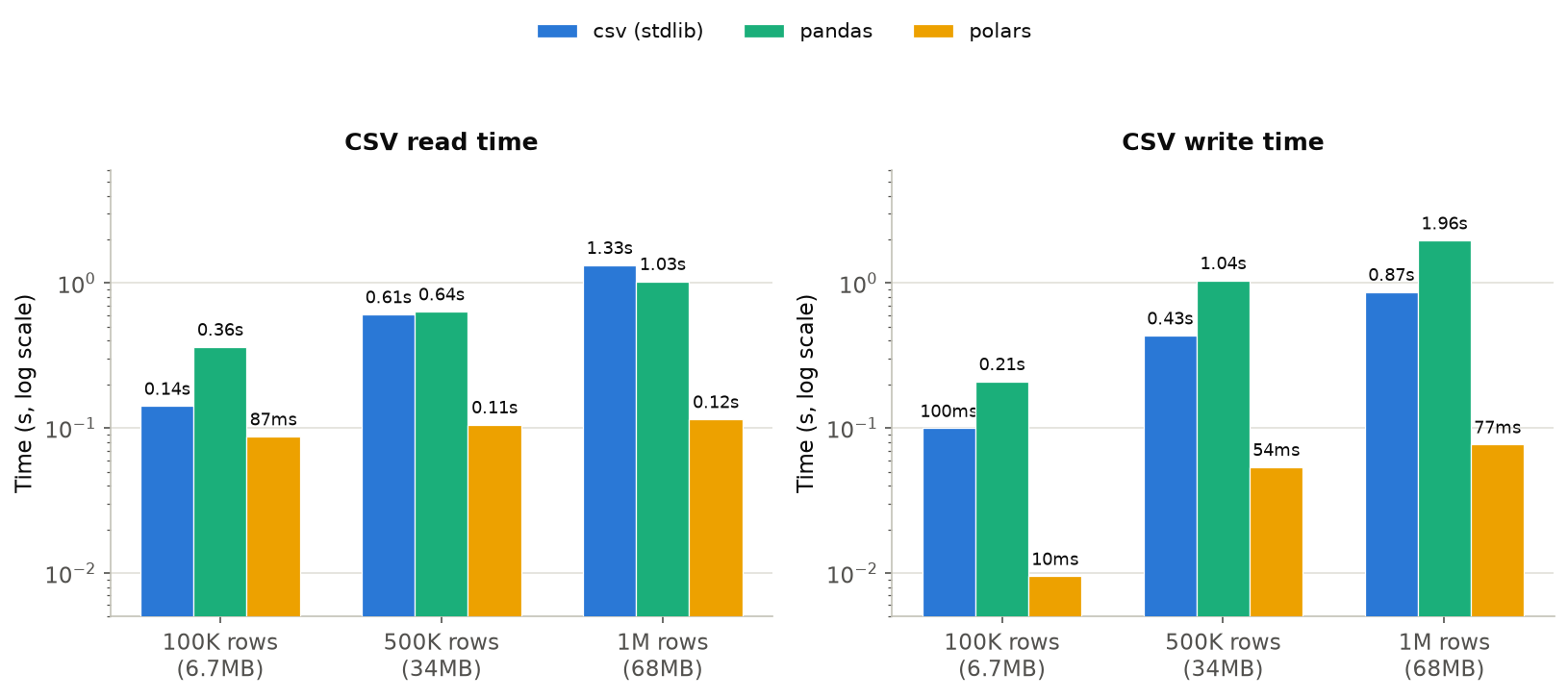
On reads, polars was about 11.6x faster than csv and about 8.9x faster than pandas at 1,000,000 rows. What’s more interesting is writing: pandas’s to_csv is actually slower than the stdlib csv.writer (1.96s vs 0.87s at 1,000,000 rows). This has a methodological explanation. In this benchmark, the csv-module path reads rows with csv.reader and writes those already-string rows straight back out with csv.writer – no type conversion needed. pandas and polars, on the other hand, first parse numeric/date columns into typed data via read_csv, then have to re-serialize that typed data back into text during to_csv/write_csv. That formatting cost is what makes pandas’s write slower. polars stays faster than the csv module despite paying the same formatting cost because it parallelizes the column-wise write in Rust. The accurate takeaway isn’t “pandas is slow at writing” – it’s that once you hold typed data, the text-formatting cost is unavoidable, and polars parallelizes/vectorizes that cost far more effectively than pandas does.
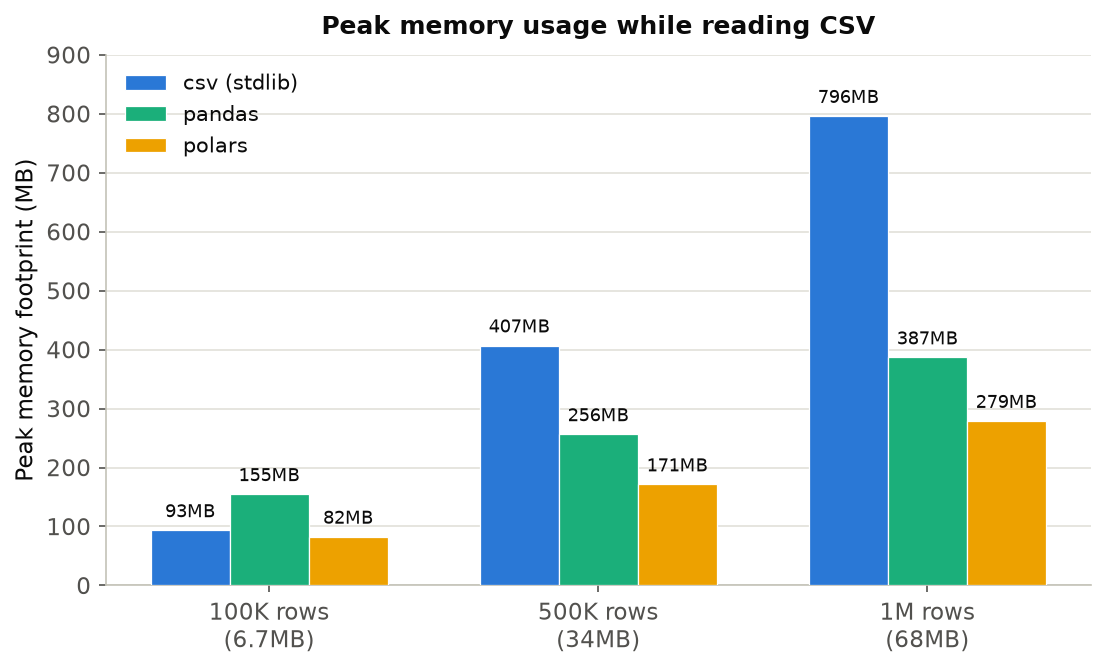
For memory, reading 1,000,000 rows peaked at 796MB for the csv module, 387MB for pandas, and 279MB for polars. It may be surprising that the csv module is heaviest, but that’s because list(reader) holds every row in memory as a Python list[list[str]]. Python string and list objects carry meaningful per-object header overhead, so the same data held this way uses several times more memory than the equivalent NumPy or Apache Arrow arrays. pandas is smaller because it stores columns as NumPy arrays (and, since pandas 3.0, Arrow-backed string arrays for some columns); polars is smallest because Apache Arrow’s columnar layout is even denser.
Why pandas and polars Outperform the csv Module
The read-speed gap ultimately comes down to where type conversion and looping happen.
- The csv module:
csv.readerproduces a Python object (a list of strings) one row at a time, and any subsequent type conversion (callingint()orfloat(), etc.) also runs in a Python-interpreter loop. CPython’sforloop carries bytecode-interpretation overhead on every iteration, and that overhead accumulates linearly with row count. - pandas:
read_csvuses a C-implemented parser by default, reading the file in blocks and performing numeric conversion column-by-column inside NumPy’s C-level loops. Because it never drops into a Pythonforloop, it’s substantially faster than the csv module. - polars: has a multi-threaded parser written in Rust that splits the file into chunks and processes columns and chunks in parallel. It also uses Apache Arrow’s memory layout (columnar, contiguous, close to zero-copy buffer sharing), which improves cache efficiency and makes SIMD vectorization more effective. Where pandas’s C parser is single-threaded, polars automatically tries to use every available CPU core – so the gap widens on machines with more cores (the M1 used here has 8).
The Lazy API (scan_csv + .collect()) can go even faster because it optimizes the whole query before executing it. For example, it can push column selection (like usecols) or filter conditions down into the parsing stage itself (predicate/projection pushdown), skipping unneeded columns or parsing work entirely. The eager pl.read_csv() API doesn’t get this optimization, so on large data the Lazy API can have a real edge.
8. Pitfalls You’ll Actually Hit in Practice
Everything above assumed “correctly formatted CSV, processed fast.” Real-world CSVs are often structurally broken or don’t have the types you expect. Let’s walk through two representative pitfalls, running real code against each.
8.1 Delimiters and Newlines Inside Quoted Fields
The CSV spec (RFC 4180) lets a field contain commas or newlines if it’s wrapped in double quotes. First, the properly quoted case:
import csv
import io

csv_text = (
    'name,address,notes\n'
    'Alice,"123 Main St\n(Suite 4B)",VIP\n'
    'Bob,"456 Oak Ave, Springfield",Regular\n'
)

reader = csv.reader(io.StringIO(csv_text))
for row in reader:
    print(row)
['name', 'address', 'notes']
['Alice', '123 Main St\n(Suite 4B)', 'VIP']
['Bob', '456 Oak Ave, Springfield', 'Regular']
The csv module, pandas, and polars all handle quoted commas and newlines correctly per RFC 4180. You’ll sometimes hear the claim that “the csv module mishandles embedded newlines” – but at least with the standard dialect, all three libraries handle this correctly, as verified above.
The real problem shows up when a field contains a comma but was never quoted – common with data pasted manually from Excel, or custom export scripts that skip quoting.
import csv
import io
import pandas as pd
import polars as pl

# Row 2's address contains a comma but isn't quoted
csv_text = (
    "name,address,notes\n"
    "Alice,123 Main St,VIP\n"
    "Bob,456 Oak Ave, Springfield,Regular\n"
)

print("--- csv.reader ---")
reader = csv.reader(io.StringIO(csv_text))
header = next(reader)
for row in reader:
    print(row, "len=", len(row))
--- csv.reader ---
['Alice', '123 Main St', 'VIP'] len= 3
['Bob', '456 Oak Ave', ' Springfield', 'Regular'] len= 4
csv.reader returns the ragged row without raising any error. Row 2 now has 4 fields, and if downstream code indexes into it positionally, it will silently use misaligned data without any warning. Reading the same data with pandas and polars fails explicitly instead.
print("--- pandas.read_csv ---")
try:
    df = pd.read_csv(io.StringIO(csv_text))
except Exception as e:
    print(f"{type(e).__name__}: {e}")

print("--- polars.read_csv ---")
try:
    df = pl.read_csv(csv_text.encode())
except Exception as e:
    print(f"{type(e).__name__}: {e}")
--- pandas.read_csv ---
ParserError: Error tokenizing data. C error: Expected 3 fields in line 3, saw 4


--- polars.read_csv ---
ComputeError: found more fields than defined in 'Schema'

Consider setting 'truncate_ragged_lines=True'.
pandas raises ParserError, polars raises ComputeError – both fail explicitly. “The csv module is safer because it’s lenient” has it backwards: silently returning corrupted data is the more dangerous failure mode, and pandas/polars’s “fail loudly” behavior is what actually prevents downstream incidents.
Reaching for truncate_ragged_lines=True, as polars’s error message suggests, trades that loud failure for a silent data corruption of its own.
df = pl.read_csv(csv_text.encode(), truncate_ragged_lines=True)
print(df)
shape: (2, 3)
┌───────┬─────────────┬──────────────┐
│ name  ┆ address     ┆ notes        │
│ ---   ┆ ---         ┆ ---          │
│ str   ┆ str         ┆ str          │
╞═══════╪═════════════╪══════════════╡
│ Alice ┆ 123 Main St ┆ VIP          │
│ Bob   ┆ 456 Oak Ave ┆  Springfield │
└───────┴─────────────┴──────────────┘
Row 2’s notes value (“Regular”) has vanished, replaced by the tail of the address ( Springfield). truncate_ragged_lines just silently drops the overflow field rather than realigning columns correctly. In practice, it’s safer to first surface which rows are broken with something like pd.read_csv(..., on_bad_lines="warn"), then fix the upstream export logic.
df = pd.read_csv(io.StringIO(csv_text), on_bad_lines="warn")
ParserWarning: Skipping line 3: expected 3 fields, saw 4

    name      address notes
0  Alice  123 Main St   VIP
8.2 dtype Inference Pitfalls: One Bad Value in a Numeric-Looking Column
When a single non-numeric value slips into an otherwise numeric-looking column, pandas gives up on type inference for the entire column. This isn’t just a typing inconvenience – it means aggregations fail silently with a wrong answer instead of raising an error.
import pandas as pd
import io

csv_text = "name,sales\nAlice,15000\nBob,23000\nCarol,TBD\nDave,18500\n"
df = pd.read_csv(io.StringIO(csv_text))
print(df.dtypes)
print(df)
print("Sum of sales:", df["sales"].sum())
Running this on pandas 3.0.3 gives:
name     str
sales    str
dtype: object

    name  sales
0  Alice  15000
1    Bob  23000
2  Carol    TBD
3   Dave  18500

Sum of sales: 1500023000TBD18500
That single “TBD” string forces the entire sales column – including 15000 and 23000 – to become string-typed, and .sum() performs string concatenation instead of raising an error. Instead of the correct total (56500), you silently get the corrupted string above, with no exception raised. This is a silent failure and arguably more dangerous than a loud TypeError would be.
Note that pandas 3.0’s default string-typed columns show up as the new str dtype (PyArrow-backed); pandas 2.x shows the same situation as object dtype. The underlying behavior is identical across both – a column that fails full numeric inference becomes entirely string-typed, and .sum() silently concatenates strings, in both the 2.x and 3.0 series. Testing the same data against pandas 2.3.3 locally, the column’s memory footprint was 346 bytes under object dtype versus 182 bytes under pandas 3.0’s str dtype – roughly half. String-column memory efficiency has genuinely improved in pandas 3.0, but the “silently corrupts on bad input” behavior itself hasn’t changed.
The fix is to specify types explicitly, or use pd.to_numeric with coercion to surface the bad values:
df["sales_fixed"] = pd.to_numeric(df["sales"], errors="coerce")
print(df)
print("Missing count:", df["sales_fixed"].isna().sum())
print("Correct sum:", df["sales_fixed"].sum())
    name  sales  sales_fixed
0  Alice  15000      15000.0
1    Bob  23000      23000.0
2  Carol    TBD          NaN
3   Dave  18500      18500.0

Missing count: 1
Correct sum: 56500.0
errors="coerce" turns unconvertible values into NaN, so isna().sum() immediately tells you how many bad values were present. On large files, running this kind of check on key numeric columns right after loading prevents aggregations from silently breaking downstream. The same discipline applies in polars: if pl.read_csv falls back to str for a numeric column, cast explicitly with pl.col(...).cast(pl.Float64, strict=False) and check null_count() to see how many values failed to convert.
9. Performance Tips
Key techniques for improving performance when working with large CSV files.
9.1 Read Only the Columns You Need
import pandas as pd

# Reading all columns (slow)
df = pd.read_csv("large.csv")

# Reading only needed columns (fast, less memory)
df = pd.read_csv("large.csv", usecols=["name", "sales"])
9.2 Specify Types Explicitly
pandas spends time on type inference, so specifying types explicitly speeds up reading large files.
import pandas as pd

dtypes = {
    "id": "int32",          # int64 -> int32 halves memory
    "name": "string",       # More efficient than object
    "sales": "float32",     # float64 -> float32 halves memory
    "category": "category", # Category type drastically reduces memory
}

df = pd.read_csv("large.csv", dtype=dtypes)
9.3 Convert to Parquet Format
If you repeatedly read the same CSV, converting it to Parquet format provides significantly faster reads.
import pandas as pd

# Convert CSV to Parquet (one-time)
df = pd.read_csv("large.csv")
df.to_parquet("large.parquet", engine="pyarrow")

# Subsequent reads from Parquet (several times to orders of magnitude faster)
df = pd.read_parquet("large.parquet")
9.4 Reading Multiple CSVs in Parallel
When processing many CSV files simultaneously, asynchronous processing or multiprocessing can help.
from concurrent.futures import ProcessPoolExecutor
import pandas as pd
import glob

def process_file(filepath):
    """Process an individual CSV file."""
    df = pd.read_csv(filepath)
    return df[df["sales"] > 10000]

# Parallel processing with multiprocessing
files = glob.glob("data/sales_*.csv")
with ProcessPoolExecutor(max_workers=4) as executor:
    results = list(executor.map(process_file, files))

combined = pd.concat(results, ignore_index=True)
Summary
Choosing the right tool for CSV processing depends on your use case:
- Small-scale, simple tasks –
csvmodule (no dependencies, but it silently accepts malformed rows such as ones with the wrong field count, making it fragile against unexpectedly broken input) - Data analysis and transformation –
pandas(most widely used; measured at about 1.03s to read 1,000,000 rows. Failed type inference can silently break aggregations like.sum(), so make checking withpd.to_numeric(errors="coerce")a habit) - Large-scale data, high performance –
polars(auto-parallelization, lazy evaluation; measured at about 0.12s to read the same 1,000,000 rows – roughly 8-9x faster than pandas and over 11x faster than the csv module)
Encoding issues are unavoidable in multilingual environments, so adopting practices like automatic detection with charset-normalizer (or chardet) and using utf-8-sig for Excel compatibility will save you time. That said, detection confidence can come back low on small files, so don’t rely on the confidence score alone – factor in what you know about the data’s origin (Windows vs. Unix-style pipelines). Additionally, converting frequently-read files to Parquet format can dramatically improve read speeds.
CSV looks simple on paper, but pitfalls like missing quotes, mismatched field counts, and failed type inference show up constantly in practice. A library that raises an error is still the safe case – the real danger is a library that fails silently and returns corrupted data. The more critical your pipeline, the more it’s worth adding a validation step right after loading to check row counts, types, and missing-value counts.
Related Articles
- Python Async Processing: A Practical asyncio Guide - Learn the fundamentals of asynchronous processing for efficiently handling large numbers of CSV files.
- Practical Python Decorators - Add logging and retry functionality to CSV processing functions using decorators.
- Complete Guide to Python Regular Expressions - Master the regex fundamentals essential for CSV data cleansing.
- Python Logging Module Practical Guide: Beyond print() - Logging patterns for tracking progress, errors, and row counts in large CSV processing pipelines.
- Python Type Hints Practical Guide: From Basics to mypy - Annotate DataFrame, dict, and row-record structures used in CSV I/O to improve maintainability.
- Matplotlib Practical Tips: Creating Publication-Quality Plots - Visualization tips for turning CSV-loaded data into publication-quality figures.
References
- csv — CSV File Reading and Writing (Python Official Docs)
- pandas.read_csv (pandas Official Docs)
- What’s new in 3.0.0 (pandas Official Release Notes)
- Polars User Guide
- Announcing Polars 1.0 (Polars Official Blog)
- Polars in Aggregate: Polars Cloud, Streaming engine, and New Data Types (Polars Official Blog)
- charset-normalizer — Character Encoding Detection
- chardet — Character Encoding Detection
Related Tools
- DevToolBox - Free Developer Tools - 85+ developer tools including JSON formatter, regex tester, and more
- CalcBox - Everyday Calculators - 61+ calculators for statistics, compound interest, and more